
11.7 Using AI in Classification Rules
11.7.1 Turning the AI module on
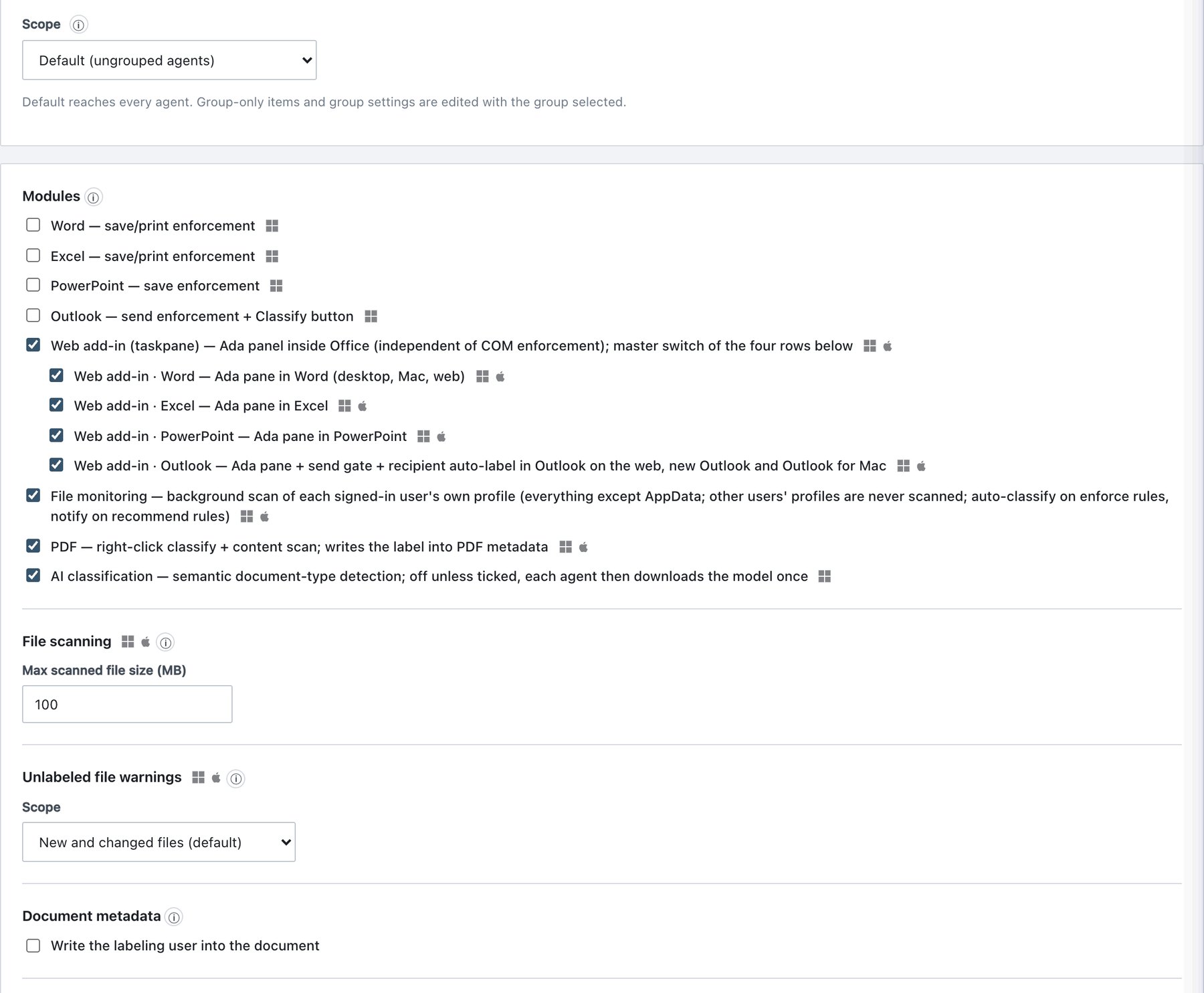
The AI module is off by default and is the only module whose default is off.
- Open Policy → Rules → Agent Rules → Modules.
- Choose the scope: Default, or a group.
- Tick AI classification — semantic document-type detection; off unless ticked, each agent then downloads the model once.
- Publish & Sign.
| Scope | Behaviour |
|---|---|
| Default | Ticked = on for every endpoint without its own group value. |
| Group | A group shows the Default value until you change it there; then the group keeps its own value. |
While the module is off for an endpoint, its agent downloads nothing, starts no AI process and AI conditions never match. The module cannot be used as a rule’s module scope; rules choose AI with an AI condition.
11.7.2 Creating a rule from the AI page
- In Your document types, tick one or more trained types.
- Click + Create rule from selected (N).
- The rule editor opens in Policy → Rules → Classification Rules (Default scope) with a draft:
| Draft field | Value |
|---|---|
| Name | AI — <type>; with several types
AI — N document types; a number is appended if the name is
taken. |
| Action | Recommend |
| Label | The types’ suggested label (and sub-label) if all selected types share it; otherwise empty — choose one. |
| Match | Any (one AI condition per selected type) |
| Conditions | One AI document type condition per type, Threshold (%) 70, Look at Whole document |
| Test mode | On |
- Adjust groups, label and thresholds, click Save, then Publish & Sign.
11.7.3 AI condition fields
In any rule, click + AI document type (condition) or + Exception AI type (exception), or change a condition’s Type to AI document type. Pattern and count fields disappear; an AI condition carries no text match.
| Field | What it does | Default / allowed values |
|---|---|---|
| Type | Condition type. | Pattern (regex) · Keyword · AI document type |
| Document type | One of your trained types (group Your document types). | Required. — Select a document type — blocks Save. A type
that is no longer in the trained layer shows as |
| Threshold (%) | Minimum probability for the condition to be met. Below it the hint shows the measured quality: At 70%: precision 96%, recall 85%, Never fired at 70% or Not measured. | Default 70; allowed 5–99, step 5 in the arrows. Measured values are taken from the nearest measured threshold at or below yours (the cautious side). |
| Look at | Whole document: the model decides what kind of document this is overall. Document or a part: also met when about half a page reads as this type (see below). | Default Whole document. |
Document or a part. The document is also examined in overlapping quarter-page parts. The condition is met when the whole document reaches the threshold or at least 3 parts reach the threshold or 95 %, whichever is higher. Use it for “contains a CV” rather than “is a CV” — for example a CV pasted into a long report. Cost: a few more false alarms (measured for a CV type: 2.7 % → 4.3 % of real unrelated documents). The label window then says contains a … section and the audit marks the result (part).
Test mode — record matches only (checkbox, shown for rules with an AI condition):
- The rule is evaluated on agents but never recommends, warns or enforces. Each match is written to the audit as AI rule in test mode matched, with the document type and its probability.
- Allowed only when the rule cannot match without its AI condition: Match: All, or only AI conditions. Otherwise the box is disabled with Needs a rule that cannot match without its AI condition. (Older agents ignore test mode but never satisfy an AI condition, so such a rule stays silent on them.)
Enforcing with low measured accuracy (warning, does not block Save). Shown when the action is Enforce, test mode is off, and an AI condition’s measured precision at its threshold is below 95 % or was never measured:
With Document or a part it adds: …also labels documents where only a part reads as this type — the measured precision covers whole documents only.
11.7.4 Validation rules (Save and Publish)
| Rule | Message |
|---|---|
| A document type must be chosen. | Choose the document type of the AI condition. |
| Threshold between 5 % and 99 %. | Set the AI threshold between 5% and 99%. |
| A masking rule cannot have AI conditions or AI exceptions. | A masking rule cannot use an AI condition. |
| Test mode only on rules that need their AI condition. | Test mode needs a rule that cannot match without its AI condition. |
| An AI condition never carries a pattern, keywords or validator. | Enforced by the editor and the server. |
| “Document or a part” is only valid on AI conditions. | Server rejects other uses. |
11.7.5 How AI changes (and does not change) the outcome
- Scores are probabilities, not accuracy. “Confidence 97 %” is how sure the model is about this document; the measured precision on the AI page is how often it was right on your examples.
- No score means “not met”. If the module is off, the model is not ready, the AI process is paused, or the score did not arrive in time, every AI condition is simply not met and all other conditions still work. Classification never fails because of AI.
- AI exceptions follow the same logic: where no score exists (web add-ins, older agents), an AI exception does not apply and the rule may fire.
- Labelled documents. When a document already carries a label, agents ask for an AI score only if an AI rule could still change the result: a Warn rule, a test-mode rule, or a Recommend/Enforce rule whose label is higher than the current one. Otherwise the score is skipped (this saves about two CPU-seconds per save or scan). Unlabelled documents and the explicit Classify dialog (ribbon button, right-click Classify) are always scored.
- Highest label wins across all matching rules, as for pattern rules.
- Console Rule Test (Classification Rules) never satisfies AI conditions — the model runs on agents. Use Test a document (section 11.8) for AI.