
6.5 Active Directory
Administration → Settings → Active Directory. Connects Ada to Active Directory over LDAPS. The connection is used for three things: console sign-in with AD accounts, live search of AD groups/users/computers in the Groups and Users pickers, and resolving the group memberships of the user signed in on each agent machine (policy-group targeting).
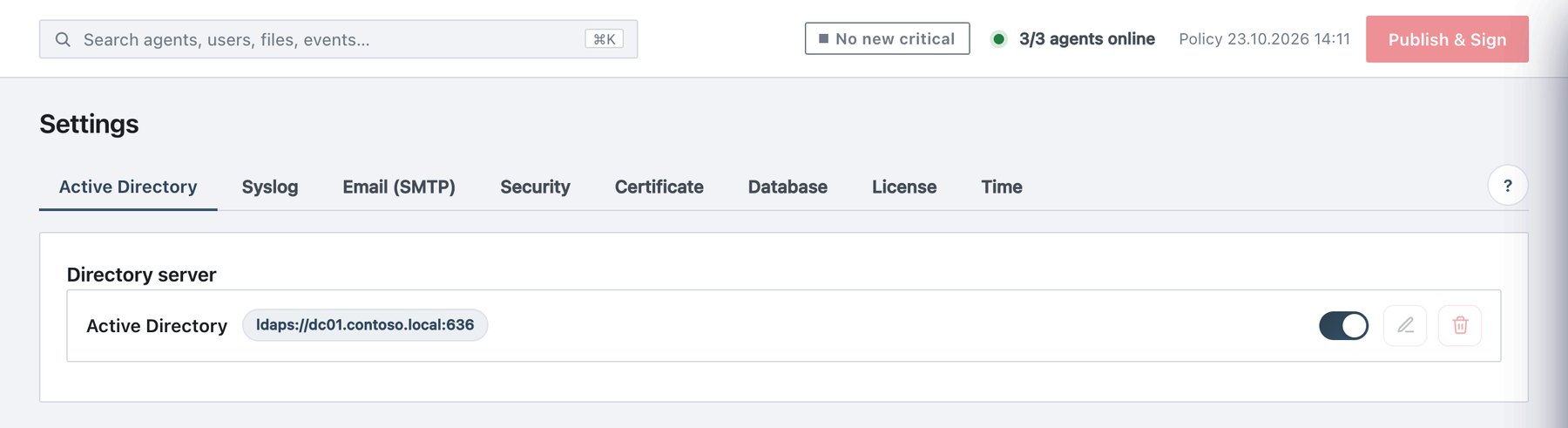
What the page shows
The Directory server card holds at most one directory row:
- Name (the Display name, or Active Directory sign-in).
- A badge with the primary DC URL, plus · +1 failover DC when a secondary DC is set and · +N domains for additional domains.
- A disabled badge when the directory is off.
- A switch that turns the directory on or off immediately (stored password and certificate are kept).
- Edit (pencil) and Delete (bin) icons.
With no directory configured the card shows No directory yet — click “Add server” to enable AD sign-in. and an + Add server button.
How AD sign-in works
- The service account binds to the DC and searches
the Base DN subtree with the User search
filter, in which
{u}is replaced by the escaped user name. Exactly one entry must match; zero or several matches count as a failed sign-in. - Ada binds as the user with the password typed. Only the DC verifies the password; Ada never stores it.
- Ada reads the user’s nested group memberships (all
levels, via the
LDAP_MATCHING_RULE_IN_CHAINrule), the primary group (for example Domain Users) and the user’s own SID. - These SIDs are compared with the role assignments under Administration → Users → Active Directory access. Administrator wins over Auditor. A user matching neither is refused with Your account is not authorized for the Ada console.
The console session of an AD user carries the user’s UPN as its user name. Password and account policy (expiry, lock-out) stay with the domain.
Configure the directory
- Create a read-only service account in AD (for example
svc-ada-ldap). It only searches users and groups. - Make sure the Ada server can reach each DC on TCP 636 and that the DCs have an LDAPS certificate.
- Click + Add server (or the pencil on the existing row).
- Fill in the fields below. Tick Enabled: a new directory starts disabled.
- Click Test connection. Fix any reported error (DNS, firewall, certificate, service-account password).
- Click Save. The message reads Saved. Users can now sign in with their AD accounts. (or, if not enabled, that AD sign-in stays disabled).
- Go to Administration → Users → Active Directory access and assign the Administrator and Auditor roles (Chapter 7.3). Until then no AD user can sign in.
- Sign in once with an AD account in a private browser window to confirm.
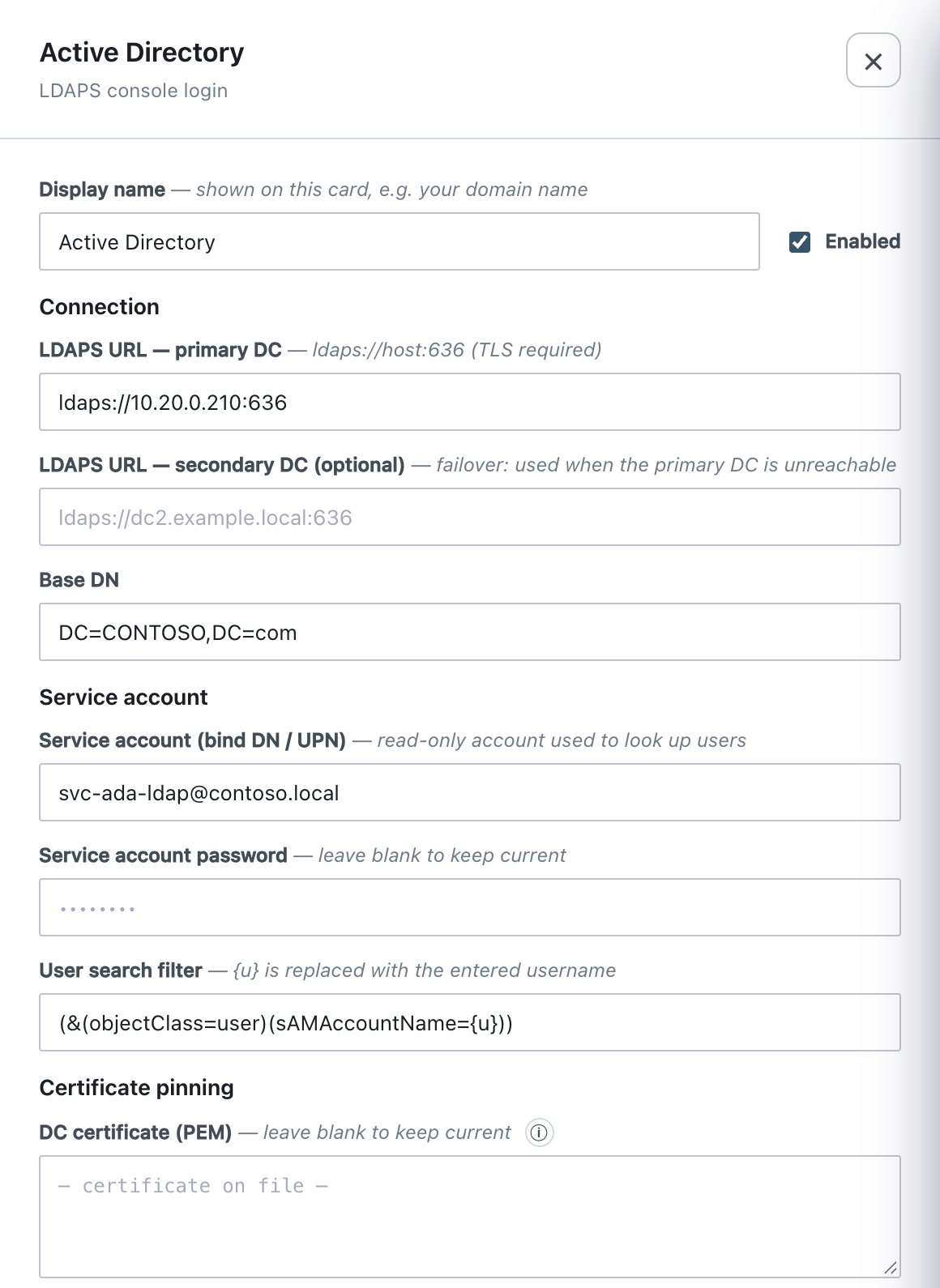
Field reference — default domain
| Field | What it does | Default / allowed values |
|---|---|---|
| Display name | Name shown on the card. | Free text. Empty = Active Directory sign-in. |
| Enabled | Turns AD sign-in, AD search and AD group resolution on. | Unticked for a new directory. |
| LDAPS URL — primary DC | First DC to contact. | ldaps://host:636. Required. Must start with
ldaps:// when enabled; plain LDAP is refused. |
| LDAPS URL — secondary DC (optional) | Failover DC, used only when the primary cannot be reached. | ldaps://… |
| Base DN | Subtree searched for users and groups. | e.g. DC=contoso,DC=com. Required. |
| Service account (bind DN / UPN) | Read-only account used to search. | UPN (svc-ada-ldap@contoso.com) or full DN.
Required. |
| Service account password | Its password. | Required the first time; afterwards leave blank to keep current. Never returned to the browser. |
| User search filter | LDAP filter locating the signing-in user; {u} = the
typed user name. |
Default
(&(objectClass=user)(sAMAccountName={u})). |
| DC certificate (PEM) | Pinned trust anchor for LDAPS. | Optional. Blank keeps the stored certificate (— certificate on file —). See Certificate pinning. |
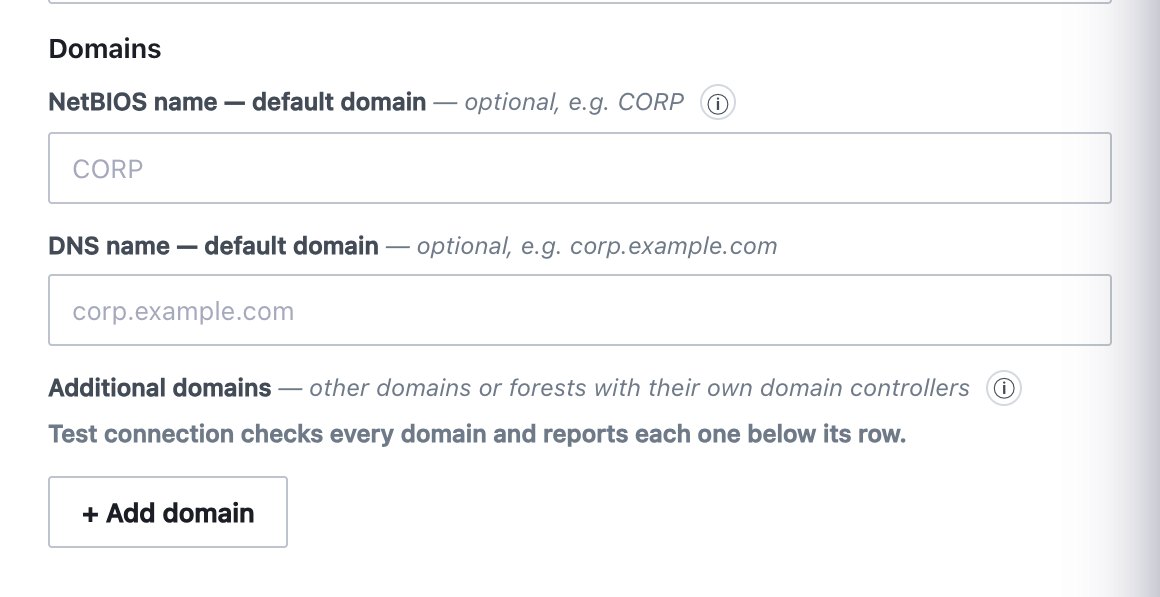
| NetBIOS name — default domain | Name of the domain described above, used to match machines and
DOMAIN\user sign-ins. |
Optional, e.g. CONTOSO. Needed only with additional
domains. |
| DNS name — default domain | DNS name of that domain. | Optional, e.g. contoso.com. |
Certificate pinning. With a PEM pasted, LDAPS trusts
only that certificate and anything that chains to it,
and the host-name check is relaxed (the signature provides the trust).
One PEM serves both DCs, so when the primary and secondary have
different certificates, paste the issuing CA (for example the enterprise
root CA) instead of one DC’s certificate. With no PEM, the DC
certificate must chain to a CA the server already trusts (public CAs,
plus the corporate CA bundle given at installation as
ADA_EXTRA_CA_CERTS) and must match the host name in the
URL. TLS 1.2 or later is required; certificate errors are never
ignored.
Several domains or forests
The connection fields describe the default domain. Under Domains → Additional domains, + Add domain adds another domain or forest with its own DCs. Each row shows a test badge (OK, degraded or failed) after Test connection, and a bin icon to remove it.
| Field (per additional domain) | Notes |
|---|---|
| NetBIOS name | e.g. EMEA; max 15 characters. A NetBIOS
or DNS name is required. |
| DNS name | e.g. emea.contoso.com. A name may be used by one domain
only. |
| LDAPS URL — primary DC / secondary DC (optional) | Same rules as above (ldaps:// only). |
| Base DN | Required. |
| Service account (bind DN / UPN) | Required; an account of that domain. |
| Service account password | Required for a new domain; blank keeps the stored one. |
| User search filter | Blank = same filter as the default domain. |
| DC certificate (PEM) | Blank = same certificate as the default domain. |
Rules:
- Machines are matched to a domain by the NetBIOS name, DNS name or DNS suffix their agent reports; a machine matching none uses the default domain. Windows agents 1.3.83 and later also report the user’s SID, so the user is looked up by SID and the same user name in two domains is never confused.
- Console sign-in:
DOMAIN\useroruser@dns.nameselects the domain. A bare user name must exist in exactly one domain. - Group and user targets are stored as SIDs, so policy groups need no change when domains are added.
- Group memberships granted through a cross-forest trust (foreign security principals) are not evaluated; each user’s groups are read in the user’s own domain.
- Test connection tests every domain and reports each one under its row.
Test connection results
| Message | Meaning |
|---|---|
| LDAPS connection OK; service account verified. | One DC configured, bind and base-DN read succeeded. |
| LDAPS connection OK. No admin role targets are set yet — configure them in … | Works, but nobody has a console role yet. |
| Failover ready — Primary DC (…): OK · Secondary DC (…): OK | Both DCs answer. |
| Only one domain controller answers — failover is NOT available: … | Sign-in works; the other DC needs attention. Shown as a warning in System. |
| No DC reachable — … | Neither DC answers. |
| Domain controller unreachable (…) / refused the connection / timed out | Network, firewall, or LDAPS not listening on 636. |
| DNS lookup failed for … | Check the DC name and the server’s DNS. |
| TLS certificate of … is not trusted — paste the DC certificate (PEM) … | Pin the DC certificate or its issuing CA. |
| Service account sign-in rejected by … — check the bind DN/UPN and its password. | Wrong service-account credentials. |
Test uses the values in the drawer (blank passwords fall back to the stored ones), so you can test before saving. The connection timeout is 8 seconds per DC. Each test is written to the System log of the AD component.
Behaviour
- Save applies at once; changes take effect at the next sign-in. Saving starts an immediate health check.
- Health: the connection is checked every 5 minutes,
after each Save, and whenever an AD sign-in cannot reach the directory.
State and history are shown in Administration → System
and Status. A lost connection writes
ad_connection_lost; recovery writesad_connection_restored(alert category Service health). - Failover: the secondary DC is tried only when the primary cannot be reached. A wrong-password answer from a DC is final and is not retried elsewhere.
- Group resolution for policy groups: on agent heartbeats the server resolves the signed-in user’s group SIDs and caches them for about 10 minutes (±10 %), so an AD group change reaches machines within roughly 11 minutes. At most four lookups run at a time. Local accounts and machines that are not domain-joined never receive AD groups.
- DC outage: machines keep their last known AD groups, also across server restarts, so AD-targeted policy groups do not fall back to Default. After three consecutive lookup failures in a domain, lookups in that domain pause for 60 seconds. A machine that never had its groups resolved stays on its fallback group until the DC answers.
- Console sign-in during an outage: AD accounts cannot sign in (…Active Directory could not be reached, so directory accounts cannot sign in right now.); local accounts keep working as break-glass accounts, whatever Local password sign-in says (section 6.8). Failed attempts of AD-only users are not counted towards lock-out while the DC is unreachable.
- Disable vs delete: the row switch disables AD sign-in and group resolution but keeps the configuration. Delete removes it; it is refused while any AD group or user still has a console role (remove them under Users → Active Directory access first). In both cases machines keep the AD groups they were last resolved to.
- Audit event
directory_config_changed, listing each changed field (never passwords or certificate contents).