
10.0 The Rules page
Help box
The page opens with a collapsible help panel, How do rules work?. It summarises the rule model (no rule priority, conditions, actions, groups, modules, Outlook auto label). It is reference text only; nothing in it is a setting.
Sub-tab bar
Only one section is visible at a time. The console remembers the last sub-tab you opened in this browser, so a page refresh returns to it.
| Sub-tab | What it holds | Covered in |
|---|---|---|
| Classification Rules | Content rules (pattern, keyword, AI) with the actions Recommend, Enforce, Mask and Warn, plus the Test a rule tool at the bottom. | 10.1 |
| Outlook Rules | Email enforcement switches (label on send, attachment checks) and the recipient-based auto label rules. | 10.2 |
| Screen Watermark | Viewer-identity overlay rules and screen capture protection. | 10.3 |
| Awareness | Periodic reminder messages shown to users. | 10.4 |
| General Enforcement | Label required on save / print, default label and related switches. | 10.5 |
| Agent Rules | Modules, sync interval, scan limits, web add-in catalog, Help URL, tamper protection. | 10.6 |
| Logs | Which client events are logged, per surface; pending-files inventory. | 10.7 |
Scope selector
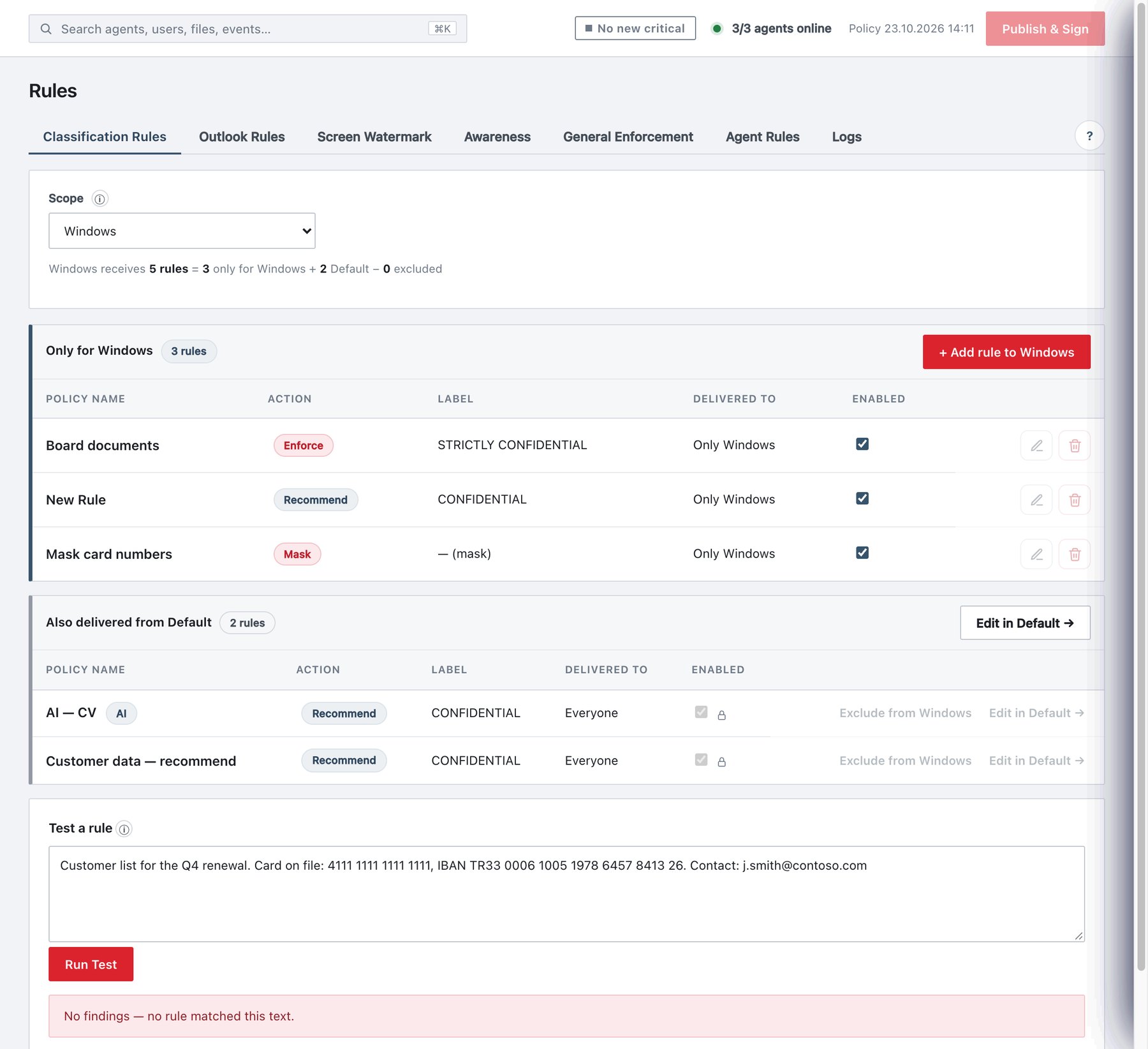
Below the sub-tab bar is the Scope card. It decides which set of rules and settings you are looking at and editing.
| Option | Meaning |
|---|---|
| Default (ungrouped agents) | You edit the Default layer. Default rules (classification rules, mail rules, watermark rules, awareness messages) are delivered to every agent, grouped or not. Default settings (the enforcement cards) apply to agents that are not in a group and are the starting values of a new group. |
| A group name (e.g. Finance) | You edit what that group receives. Rules you add are written as group-only rules for that group; enforcement switches you change are written into the group’s own settings. |
The line under the selector tells you what you are editing:
- In Default: “Default reaches every agent. Group-only items and group settings are edited with the group selected.”
- In a group, on Classification Rules or Outlook Rules, a formula that adds up the layers, for example “Finance receives 7 rules = 2 only for Finance + 6 Default − 1 excluded”.
Layered rule lists
Classification rules and mail rules are shown as bands rather than one flat list.
With Scope = Default there is a single band, Default — delivered to every agent, with a counter badge (e.g. 6 rules) and the add button + Add Default rule (or + Add Default mail rule). Rules that belong only to groups are not listed here; a footer tells you where they are: “Group-only rules not shown here: Finance 2 · HR 1 — pick the group in Scope to see them.”
With a group selected there are up to three bands:
| Band | Contents | Row actions |
|---|---|---|
| Only for Finance | Rules assigned to this group (also those assigned to this and other groups). Add button + Add rule to Finance. | Edit (pencil), Delete (bin), Enabled switch. |
| Also delivered from Default | Default rules this group receives. Rows are locked (padlock: “Defined in Default — edit there”). Band button Edit in Default →. | Exclude from Finance, Edit in Default →. |
| Excluded from Finance | Default rules this group has been excluded from. Shown only when there is at least one. Hint: “exclude wins over Default delivery”. | Include again. |
Exclude from Finance asks for confirmation (“Finance stops receiving”…“. Other groups and ungrouped agents are unaffected.”) and adds the group to the rule’s exclude list. Include again asks “Finance receives”…” again.” and removes it. Both change the draft only.
The Delivered to column in every list states the result for each row:
| Value | Meaning |
|---|---|
| Everyone | Common rule, no exclusions. |
| Everyone except HR, Interns | Common rule with excluded groups. |
| Only Finance | Assigned to one group. |
| Finance · HR | Assigned to several groups. |
Two kinds of edits, one publish
The Rules page has two edit models. Both only change the draft; nothing reaches users until Publish & Sign.
| What you edit | How it is saved | Hint shown |
|---|---|---|
| List items — classification rules, mail rules (and watermark/capture rules in 10.3) | Edited in a side drawer. The drawer’s Save writes the item into the draft immediately. The Enabled switch in a row and Exclude / Include again also write immediately. | “Applied to the draft — Publish & Sign to deploy to clients.” |
| Settings cards — e.g. Email enforcement on Outlook Rules | Edited in place. Changes are held in a local settings draft until you press the card’s Save bar. | “You have unsaved settings changes.” / “Settings are saved.” |
If you press Publish & Sign while a settings card still has unsaved changes, the console stops with “Rules has unsaved settings.” and offers Back to Rules or Publish without them.
What Publish & Sign checks for rules
| Check | Where | Message |
|---|---|---|
| Rule with empty name, or with no conditions | Console | “There is a classification rule with an empty name or no conditions — fill it in or delete it.” |
| Two rules with the same name (case-insensitive, across all groups) | Console | “The same rule name is used more than once: …” |
| Pattern does not compile, empty pattern, keyword condition without keywords | Server | e.g. “Rule”IBAN”: … the pattern is not a valid regular expression …“ |
| Recommend/Enforce rule whose label no longer exists | Server | “Rule”…“: the label this rule assigns no longer exists — pick a label for the rule.” |
| Warn rule without message, or message over 300 characters | Server | “… a Warn rule needs the message shown to the user.” |
| Mask rule with an AI condition; test mode on a rule that can match without AI; AI threshold outside 5–99 % | Server | See section 10.1, AI conditions. |
| Mail rule without name, without domains, or with a label that does not exist | Server | “mailRules[n].domains must contain at least one domain (e.g. ”abc.com”).” |
The server signs the policy and produces a separately signed variant for every group. On success the console shows “Policy published and re-signed (version …). Clients will receive it on the next sync.” If your organisation requires it (Settings → Security), the publish asks for your password first.
How fast clients pick it up
| Client | When the new rules apply |
|---|---|
| Windows and macOS agents (file monitoring, Office COM add-ins, right-click Classify) | At the next policy sync — default every 300 s, minimum 60 s (Agent Rules, 10.6). |
| Office web add-ins (Word, Excel, PowerPoint, Outlook on the web, new Outlook, Outlook for Mac) | When the add-in loads (a new panel, a new compose window). A runtime that is already loaded keeps the copy it fetched. |
When the classification rules change, the file monitor re-evaluates the files in its scope. Files whose result did not change do not produce new audit records.
Audit. Every publish writes a
policy_published event (Audit Log, Administrative changes)
whose details list each change: Rule added: …, Rule edited:
…, Rule deleted: …, Mail rule added/edited/deleted:
…, Enforcement settings changed.
Roles
Administrators edit everything. Auditors can open every drawer to read it (footer: “Read-only role — viewing only.”), switch scope and sub-tabs, and run Test a rule; all fields, Save buttons, Delete and the Enabled switches are disabled.