8.3 Creating and editing a label
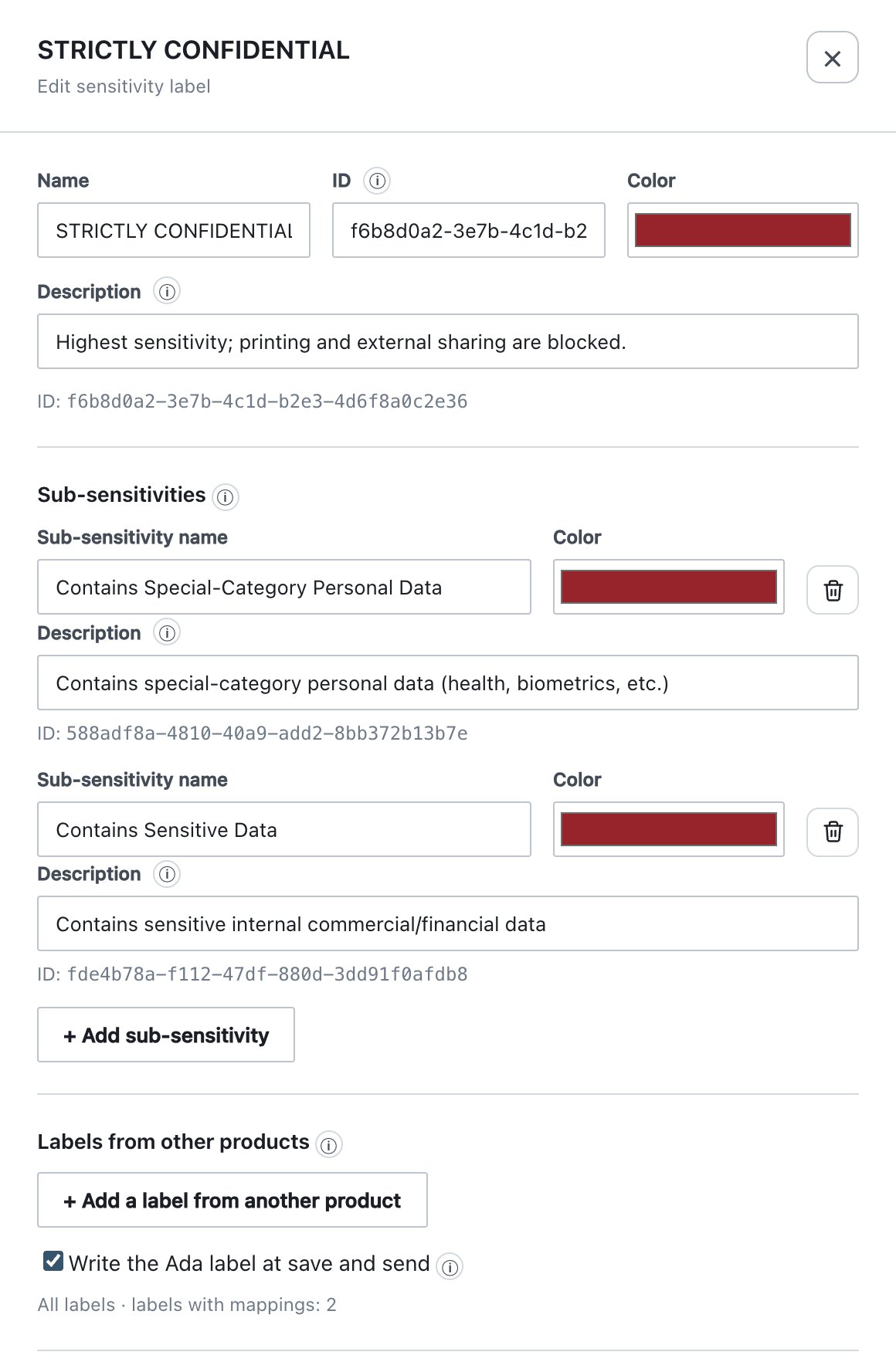
- Click + Add Label, or the pencil on an existing card. The Edit sensitivity label drawer opens.
- Fill in the sections from top to bottom: identity, Sub-sensitivities, Labels from other products, Markings, Outlook markings (email body), Restrictions, Group targeting and Group exceptions. The drawer is one scrolling form without tabs.
- Click Save in the drawer footer. The footer then reads Applied to the draft — Publish & Sign to deploy to clients.
- Move the label to its place in the ladder (section 8.2.3).
- Click Publish & Sign.
Closing the drawer without Save discards your edits.
A new label starts as New Label with colour
#605e5c, a generated GUID as its ID, no markings and no
restrictions.
Save stays disabled until the form is valid. The footer explains why:
| Footer message | Cause |
|---|---|
| Enter a unique name to enable Save. | The name is empty or used by another label, or the ID is empty, has an invalid format or is already used. |
| Give every sub-sensitivity a name to enable Save. | A sub-sensitivity has an empty name. |
| Complete the labels from other products to enable Save. | A foreign-label row is incomplete (section 8.10). |