
10.1 Classification Rules
Policy → Rules → Classification Rules holds the content rules. A rule looks at the text of a document or email and, when its conditions are met, takes one action:
| Action (UI) | What happens | Label needed |
|---|---|---|
| Recommend | The rule’s label is suggested: pre-selected in the classifier, offered in a notification, or shown in the Ada panel. The user decides. | Yes |
| Enforce | The content requires the rule’s label. Depending on the surface the label is applied silently, the item is raised to it, or the save/send is blocked until the user picks it. | Yes |
| Mask (***) | Every matched value is permanently replaced by *
characters of the same length. No label is applied. |
No |
| Warn (user continues) | Your message is shown; in Confirm mode the user can continue or cancel. No label is applied. | No |
Every enabled rule in scope is evaluated every time; there is no rule order and no “first match wins” for classification rules (see How the engine decides).
The rule list
| Column | Content |
|---|---|
| Policy Name | The rule name, followed by badges (below). |
| Action | Badge: Recommend (neutral), Enforce and Mask (red), Warn (amber). |
| Label | The label the rule recommends/enforces. Mask rules show — (mask), Warn rules — (warn). A label that no longer exists shows ?. |
| Delivered to | Everyone / Everyone except … / Only … (see section 10.0). |
| Enabled | Switch. Tooltip: “Disabled rules do not run.” Locked (padlock) for inherited Default rows in a group view. |
| (actions) | Edit (pencil) opens the rule drawer; Delete (bin) asks for confirmation. In a group view inherited rows show Exclude from … / Edit in Default → instead. |
Badges next to the name
| Badge | Meaning |
|---|---|
| invalid pattern (red) | At least one pattern condition does not compile. Publishing will be rejected. |
| name issue (red) | The name is empty or another rule has the same name. Publishing is blocked. |
| disabled (red) | The Enabled switch is off. |
| AI | The rule has at least one AI document type condition. |
| test mode (amber) | AI rule in test mode — matches are only written to the audit. |
| word, pdf, … or 3 modules | The rule is restricted to some modules. Hover to see “Only evaluated in: …”. |
Delete asks: “Are you sure you want to delete the rule”…“? To disable it instead, turn off the Enabled switch rather than using Delete.” Disabling keeps the rule (and its history in reports) and is the safer way to switch a rule off temporarily.
Adding a rule: blank or from a template
+ Add Default rule (or + Add rule to Group) opens the Add a rule drawer (“Start blank or from a template”).
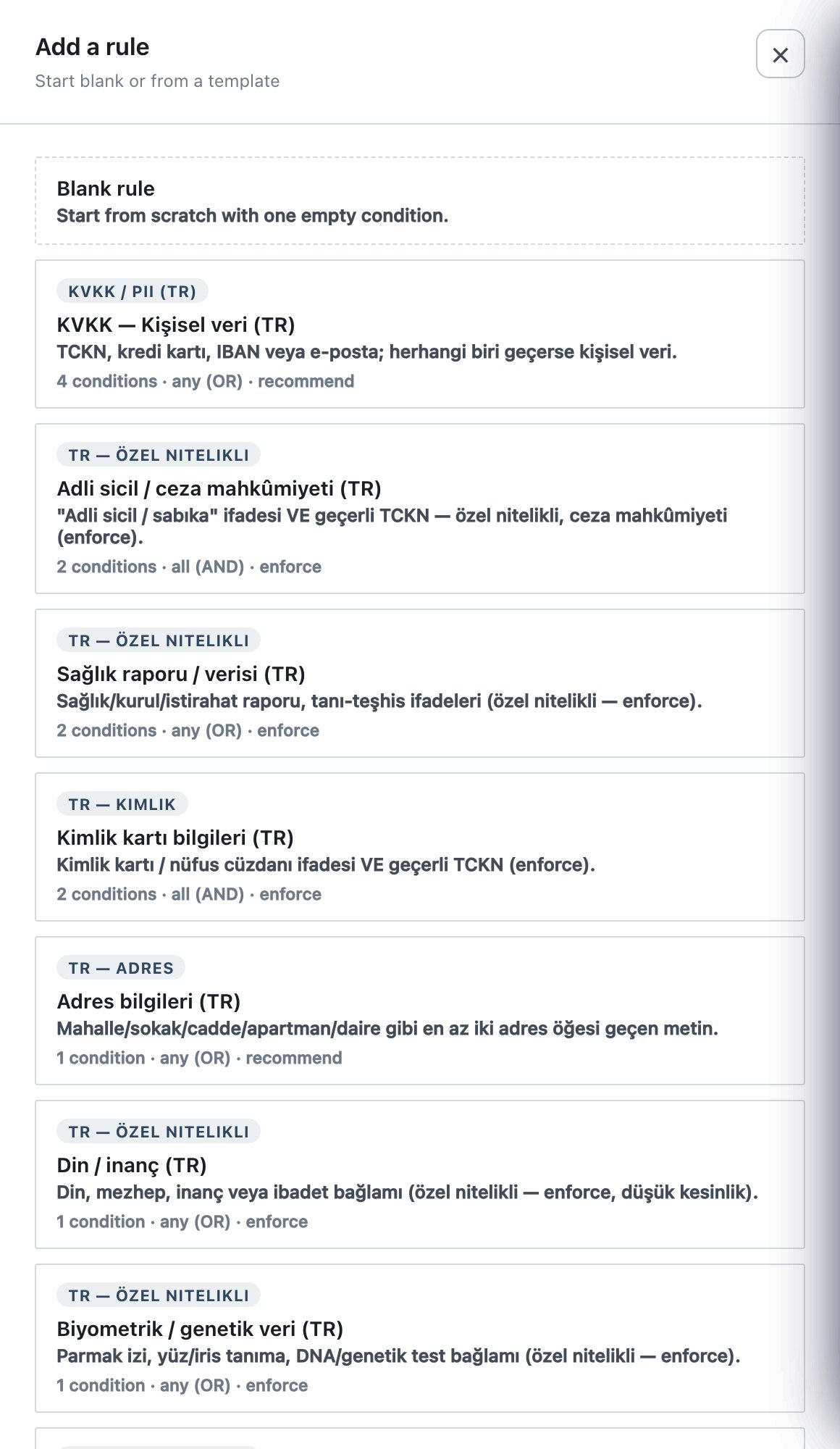
- Blank rule — “Start from scratch with one empty condition.” The new rule is called New Rule, action Recommend, match All conditions (AND), one empty pattern condition, and the first label in your Labels list pre-selected.
- Template cards — each shows a category, name, description and a summary line such as 2 conditions · all (AND) · enforce. A template fills in the conditions, the match mode and a suggested action, and deliberately leaves the Label empty: you must pick one before you can save.
In both cases a rule created while a group is selected in Scope is assigned to that group.
The 25 built-in templates are written for organisations that process Turkish personal data under KVKK, plus international sets. Their names and keywords appear in Turkish in this release. By category:
| Category | What the templates detect | Default action |
|---|---|---|
| KVKK / PII (TR) | Personal data: national ID (TCKN, validated), payment card (Luhn), IBAN (mod-97) or e-mail address — any one | Recommend |
| TR — special categories | Criminal record + valid TCKN; health report/diagnosis terms or TCKN; religion; biometric/genetic; union/association membership; political opinion; ethnic origin; sexual life | Enforce |
| TR — identity | ID card terms + valid TCKN (enforce); tax number context + 10 digits; passport term + passport number; driving licence; social security / vehicle plate / mobile number | Recommend (ID card: Enforce) |
| TR — HR / education / personal / KVKK documents | Payroll or employment terms + TCKN (enforce); diploma/transcript; marital status/family; privacy notice and explicit consent texts; address (at least two address elements) | Recommend (HR: Enforce) |
| GDPR (EU) | IBAN, e-mail, IPv4 address or passport number — any one | Recommend |
| PII (generic) | E-mail, mobile number or payment card — any one | Recommend |
| Confidential | Keywords such as confidential, internal only, company confidential | Recommend |
| PCI-DSS | Valid card number and CVV/expiry context | Enforce |
| HIPAA-like health | TCKN or diagnosis/patient keywords (Turkish and English) | Recommend |
| Secrets / source code | AWS access key, private key block or API-secret keywords — any one | Enforce |
Creating a rule step by step
- Go to Policy → Rules → Classification Rules. Set Scope to Default for a rule everyone receives, or to a group for a group-only rule.
- Click + Add Default rule (or + Add rule to Group) and choose Blank rule or a template.
- In the drawer, enter a unique Policy name.
- Choose the Action. For Recommend or Enforce, choose the Label and, if the label has sub-sensitivities, optionally a Sub-sensitivity. For Warn, write the Warning message.
- Set Match (All / Any) and build the conditions: + Pattern condition, + Keyword condition, + AI document type. For each, set Min. count and Counting.
- Optional: add Exceptions, Recipient exceptions (Outlook), restrict Modules, and set Group targeting (groups and exclude groups).
- Click Save in the drawer footer. If Save is disabled, the footer says why (e.g. “Select a label (data class) to enable Save.”).
- Paste sample text into Test a rule at the bottom of the page and click Run Test.
- Click Publish & Sign in the top bar.
The rule drawer
The drawer title is the rule name (or New rule), subtitle “Edit classification rule”. Fields are edited in a local copy; nothing changes in the draft until you press Save. Closing the drawer discards the edits.
General settings
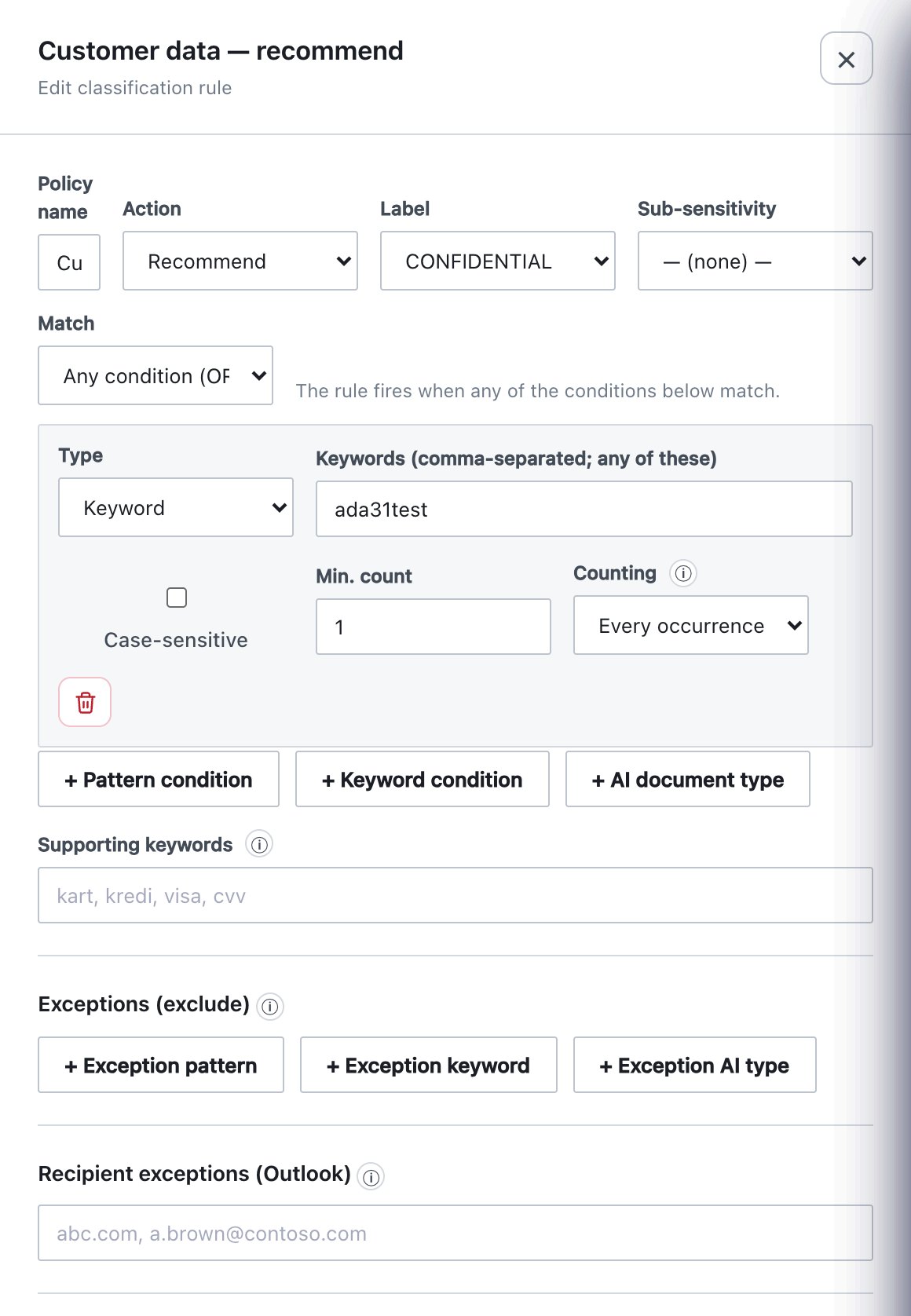
| Field | What it does | Default / allowed values |
|---|---|---|
| Policy name | Name shown in lists, the classifier (“why”), audit records and reports. | Required. Must be unique across all rules (case-insensitive). Errors: “Name is required.”, “This name is also used by another rule.” — shown in the field; publishing is blocked until fixed. |
| Action | What happens when the rule matches. | Recommend (default), Enforce, Mask (***), Warn (user continues). Switching to Mask or Warn clears the label; switching to Warn creates the warning settings with their defaults. |
| Label | The data class the rule recommends or enforces. Hidden for Mask and Warn. | Required for Recommend/Enforce. Lists every label in the policy. Error when empty: “Choose a data class (label) for this rule.”, or “No labels are defined yet — create one in the Labels tab first.” |
| Sub-sensitivity | Optional sub-label of the chosen label, pre-selected (Recommend) or written silently (Enforce). Shown only when the label has sub-sensitivities. Changing the label clears it. | — (none) — or one sub-sensitivity. With Enforce and none chosen: “Enforce applies silently — without a sub-sensitivity only the label itself is written.” |
Actions in detail
Recommend produces a suggestion. Where it surfaces:
- the classifier window (save, send, ribbon Classify, right-click Classify) opens with the highest recommended label pre-selected, with the rule’s sub-sensitivity if set;
- the background file monitor adds the file to the user’s files waiting list and shows a notification (on live changes) — it never writes a recommended label to a file;
- the Ada web panel pre-selects it.
Enforce means “this content requires this label”. The exact effect depends on where the content is (see Where and when rules run): the file monitor labels silently or raises the label; classic Outlook labels silently, raises, or blocks; Office save blocks a save below the required label.
Mask (***) is an independent, irreversible content change:
- Every occurrence of every matched value is replaced by the same
number of
*characters (100 occurrences → 100 replacements). Counting affects only whether the rule fires (Min. count), never what is masked. - With Match: Any, only the conditions that are satisfied are masked; with All, all conditions’ matches are masked.
- Exceptions apply. In Outlook, recipient exceptions apply (no masking when every recipient is excepted).
- No label is applied and mask rules never take part in label selection.
- Mask rules cannot contain an AI condition (“A masking rule cannot use an AI condition.”) — AI finds document types, not text spans.
- Desktop Office (Windows) and classic Outlook show a confirmation, Masking Will Be Applied, with a count per rule and a preview: “If you continue, the items below will be PERMANENTLY replaced with ***. This action cannot be undone.” Buttons Mask and Continue / cancel. Cancel stops the save or send.
- Outlook on the web, new Outlook and Outlook for Mac mask automatically at Send (no confirmation is possible there) and the send continues.
- The background file monitor never edits files for masking. It records Masking pending (user warned), lists the file in the user’s masking list and notifies on live changes; the user opens the file in Office and saves to mask it with confirmation.
Warn (user continues) shows a message you write. It never applies a label and combines freely with Recommend, Enforce and Mask rules on the same content.
| Field | What it does | Default / allowed values |
|---|---|---|
| Warning message | Text the user sees, exactly as written (no translation). | Required, up to 300 characters. Counter “n/300 characters — shown as written (no translation).” Empty: “A message is required — this is what the user sees.” |
| Mode | Confirm — Continue / Cancel: Cancel stops the save, send or right-click classify. Notify — OK only: the action continues after OK. | Confirm |
| Justification | Text box in the warning. Optional, Required (10+ characters), Off. A required justification is written to the audit. | Optional. The minimum length is taken from Settings → Security (default 10 characters). |
| Ask once per document | When on, a warning the user has accepted is not shown again for the same document and rule during that Office session. | On |
When several Warn rules match at once, the user sees one window: the messages one after another, the strictest mode (Confirm beats Notify) and the strictest justification (Required > Optional > Off).
Where Warn appears:
| Surface | Behaviour | Audit |
|---|---|---|
| Word / Excel / PowerPoint save, classic Outlook send, right-click Classify (Windows, macOS Finder Quick Action) | Dialog with Continue/Cancel or OK. | Content warning shown, … acknowledged (user continued), … — user cancelled |
| Outlook on the web, new Outlook, Outlook for Mac (Smart Alerts, Mailbox 1.14+) | Confirm mode: Outlook’s own dialog with your message and Send anyway. Notify mode or older clients: the send continues. The Ada panel shows the message as a banner while the user writes. | Content warning shown only — Outlook does not tell the add-in whether the user clicked Send anyway. |
| Background file monitor | Notification only, on live file changes, once per file and rule. | Content warning shown |
Conditions
| Field | What it does | Default / allowed values |
|---|---|---|
| Match | How the conditions combine. The hint below repeats the logic: “The rule fires when all of the conditions below match and no exception matches.” | All conditions (AND) (default), Any condition (OR) |
| + Pattern condition / + Keyword condition / + AI document type | Add a condition of that type. A rule with no conditions never fires (“No conditions — the rule never fires. Add at least one.”) and blocks publishing. | — |
| Type | Changes the type of an existing condition. Switching to AI document type clears the pattern, keywords and count fields. | Pattern (regex), Keyword, AI document type |
| bin icon | Remove condition. | — |
Pattern (regex) condition
| Field | What it does | Default / allowed values |
|---|---|---|
| Regex pattern | Regular expression searched in the text. Shown red with “Failed to compile: …” when invalid. | Required (empty pattern is rejected at publish). Case-sensitive. |
| Validator | Checksum applied to each regex match; matches that fail are discarded before counting. | (none), TCKN checksum, IBAN mod-97, Luhn |
| Min. count | Matches needed for the condition to be satisfied. | 1 (integer ≥ 1) |
| Counting | How matches are counted against Min. count. Unique matches: the same value counts once; spaces and dashes are ignored, so TR12 3456… and TR123456… are one match. Every occurrence: each repetition counts. | Unique matches |
Keyword condition
| Field | What it does | Default / allowed values |
|---|---|---|
| Keywords (comma-separated; any of these) | Literal terms; the condition counts occurrences of any of them. Typed as a comma-separated list. Shown red when empty. | At least one keyword (rejected at publish otherwise). |
| Case-sensitive | Exact case when ticked. | Off |
| Min. count | As above. | 1 |
| Counting | Unique matches counts how many different keywords appear; Every occurrence counts each appearance. | Every occurrence |
Comma-separated list fields. Keywords, supporting
keywords, recipient exceptions and mail rule domains all use the same
input: type entries separated by commas; while the field has focus you
see exactly what you typed, and when you leave it the list is shown
normalised (a, b, c). Empty entries are dropped. Domain and
address lists are also trimmed, lower-cased, and a leading
@ is removed.
Built-in validators
Validators are what make a pattern a reliable data type: the regex finds candidates, the validator rejects numbers that merely look right.
| Validator | Accepts | Check performed |
|---|---|---|
| TCKN checksum | Exactly 11 digits, first digit not 0 (surrounding spaces trimmed) | Turkish national ID algorithm: digit 10 = (7 × (d1+d3+d5+d7+d9) − (d2+d4+d6+d8)) mod 10; digit 11 = (d1+…+d10) mod 10. |
| IBAN mod-97 | After removing spaces and dashes and upper-casing: 2 letters, 2 digits, 11–30 letters/digits (any country) | ISO 13616: the first four characters are moved to the end, letters become numbers (A = 10 … Z = 35), and the remainder modulo 97 must be 1. |
| Luhn | After removing spaces and dashes: 13–19 digits | Luhn mod-10 checksum used by payment cards. |
Patterns supplied by the templates. These are the expressions the templates use; you can copy them into your own rules.
National ID (use with TCKN checksum)   \b[1-9][0-9]{10}\b
Payment card (use with Luhn)           \b(?:[0-9]{13,19}|[0-9]{4}[ -][0-9]{4}[ -][0-9]{4}[ -][0-9]{1,7}|[0-9]{4}[ -][0-9]{6}[ -][0-9]{4,5})\b
IBAN, no spaces (use with IBAN mod-97) \b[A-Z]{2}[0-9]{2}[A-Z0-9]{11,30}\b
E-mail address                         [\w.+-]+@[\w-]+\.[\w.-]+
IPv4 address                           \b(?:[0-9]{1,3}\.){3}[0-9]{1,3}\b
Turkish mobile number                  \b(?:\+90|0)?5[0-9]{9}\b
Passport number (letter + 8 digits)    \b[A-Z][0-9]{8}\b
AWS access key                         \bAKIA[0-9A-Z]{16}\b
Private key block                      -----BEGIN (?:RSA |EC |OPENSSH |PGP )?PRIVATE KEY-----
10-digit tax number (no checksum)      \b[0-9]{10}\b
The payment-card expression accepts only real card groupings (contiguous 13–19 digits, 4-4-4-4, 4-6-5, 4-6-4) with a space or dash as separator. Looser patterns that allow a separator after every digit join unrelated numbers in spreadsheets and PDFs into “card numbers” that pass Luhn by chance.
Writing your own patterns
- The same expression runs in the console and web add-ins (JavaScript)
and in the Windows/macOS agents (.NET). Use syntax both understand.
Inline flags such as
(?i)are rejected by the console’s check; use character classes ([Cc]onfidential) or a keyword condition instead. - Prefer
\bword boundaries and explicit lengths; avoid unbounded.*. - Agents stop any single regex evaluation after 2 seconds and analyse at most the first 2,000,000 characters of a document’s text.
- A pattern that fails to compile on a client is skipped; it never stops the other rules.
- Example for IBANs written in blocks of four (verify with
Test a rule before use):
\b[A-Z]{2}[0-9]{2}(?: ?[A-Z0-9]{4}){2,7}(?: ?[A-Z0-9]{1,3})?\bwith IBAN mod-97.
AI document type conditions
An AI document type condition is satisfied when the on-premises model is at least as sure as the threshold that the document is of a given type (payroll, CV, medical record, …). It involves no keywords. Document types, training and measured accuracy are covered in Chapter 11 (Policy → AI Classification); this section only lists the rule fields.
| Field | What it does | Default / allowed values |
|---|---|---|
| Document type | One of your trained document types (group Your document types). A type no longer in the installed model is shown as “… (not in the installed model)”. | Required. With no model on the server: “No AI model is installed on this server — this condition never matches.” |
| Threshold (%) | Minimum model probability. The hint shows the measured result at that threshold: “At 70 %: precision 97 %, recall 88 %”, “Never fired at …” or “Not measured”. | 70; 5–99, steps of 5. |
| Look at | Whole document, or Document or a part — also satisfied when about half a page reads as this type (three overlapping quarter-page parts at 95 % or the threshold, whichever is higher). | Whole document |
| Test mode — record matches only | Rule-level box, shown only on rules with an AI condition. The rule is evaluated but never recommends, warns or enforces; each match is written to the audit as AI rule in test mode matched. | Off. Allowed only when the rule cannot match without its AI condition (Match: All, or only AI conditions). |
- AI conditions are evaluated by the Windows and macOS agents (file monitoring; on Windows also Office save/send and right-click Classify), and only when the AI module is on (Policy → Rules → Agent Rules → Modules, off by default). Web add-ins and the console’s Test a rule never satisfy an AI condition.
- If you set Enforce on an AI rule whose measured precision at the chosen threshold is below 95 %, never measured, or uses Document or a part, the drawer shows Enforcing with low measured accuracy. with the reason and “Run it in test mode first, or raise the threshold.” It is a warning; Save is still allowed.
- The quickest way to create AI rules is from Policy → AI Classification, which opens this drawer pre-filled.
Supporting keywords
| Field | What it does | Default |
|---|---|---|
| Supporting keywords | Optional comma-separated terms meant to raise the confidence of a finding when they appear within 100 characters of a match. They never create or block a match. Placeholder: kart, kredi, visa, cvv. | Empty |
Exceptions (exclude)
Exceptions are conditions that suppress the rule. If any exception is satisfied, the rule produces no finding, no warning and no masking — like an exception in a DLP policy. They use the same fields as conditions and are added with + Exception pattern, + Exception keyword and + Exception AI type. Exceptions are optional.
Typical uses: a test-data marker (TEST DATA – NOT REAL), a public template, or the organisation’s own published IBAN.
Recipient exceptions (Outlook)
| Field | What it does | Default / allowed values |
|---|---|---|
| Recipient exceptions (Outlook) | Outlook only: if every recipient (To, Cc and Bcc) is covered by an entry, the rule is suppressed for that email even if the content matches. | Comma-separated domains (contoso.com)
or full addresses (j.smith@fabrikam.com).
Empty = no exception. |
Matching rules:
- Every recipient must be covered. A single outside recipient makes the rule run, so adding one trusted address to Bcc cannot switch enforcement off.
- Matching is exact:
contoso.comdoes not coversub.contoso.comorcontoso.com.tr; a full address covers only that person. - If any recipient address cannot be resolved to an SMTP address, no exception applies.
- Applies to every action: Recommend, Enforce, Mask and Warn. In classic Outlook it applies to email messages; meeting requests are evaluated without it.
Modules
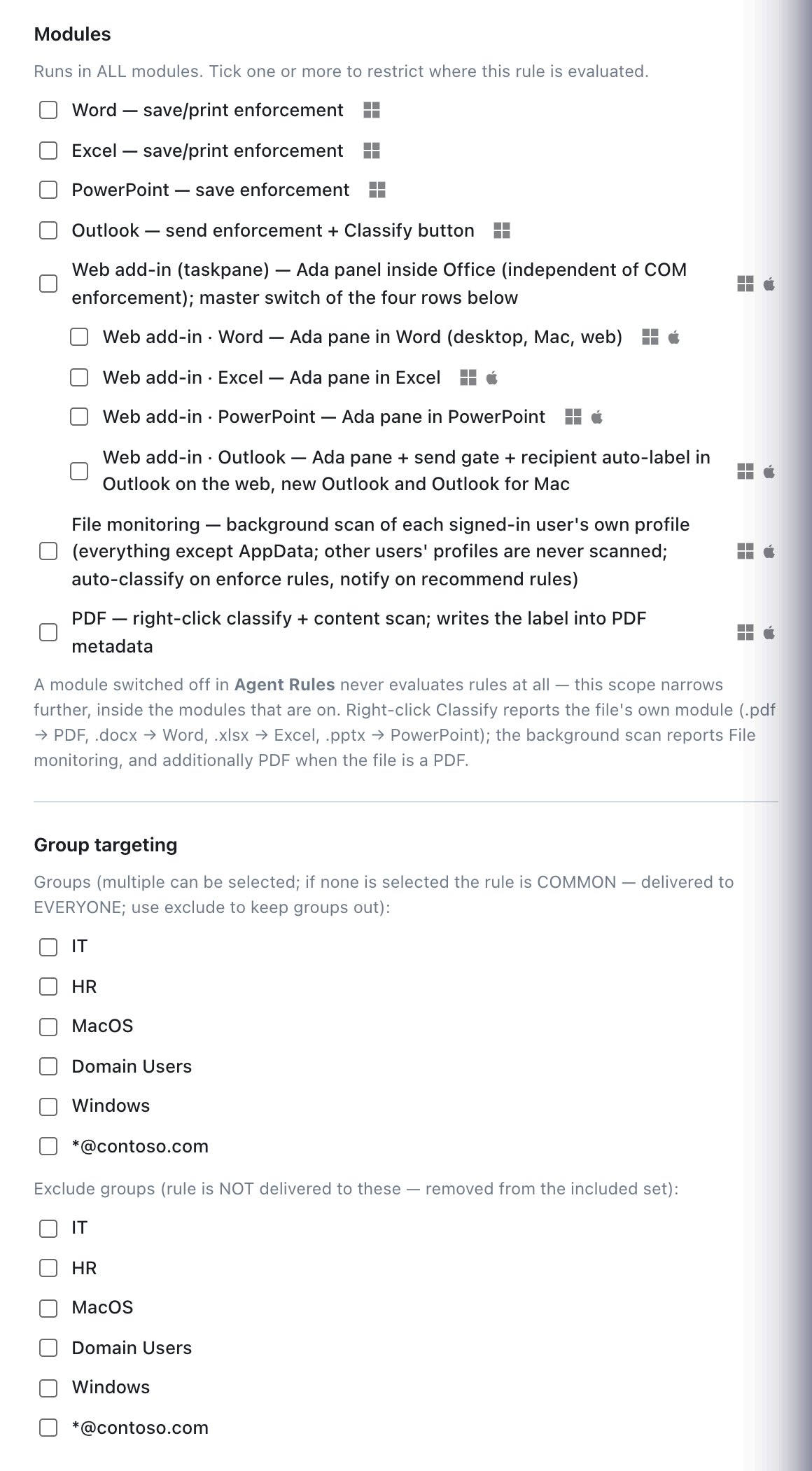
Modules restricts where the rule is evaluated. Nothing ticked = the rule runs in all modules (“Runs in ALL modules. Tick one or more to restrict where this rule is evaluated.”). With ticks: “Runs only in the ticked modules (n of 11).”
| Module | Who reports it |
|---|---|
| Word — save/print enforcement (Windows) | Word COM add-in; right-click Classify of .docx files. |
| Excel — save/print enforcement (Windows) | Excel COM add-in; right-click Classify of .xlsx files. |
| PowerPoint — save enforcement (Windows) | PowerPoint COM add-in; right-click Classify of .pptx files. |
| Outlook — send enforcement + Classify button (Windows) | Classic Outlook COM add-in. |
| Web add-in (taskpane) (Windows, macOS) | Master box for the four rows below: ticking it ticks all four; a dash means only some are ticked. |
| Web add-in · Word / · Excel / · PowerPoint / · Outlook | The Ada web add-in in that application (desktop, Mac, browser). The Outlook row covers the send gate in Outlook on the web, new Outlook and Outlook for Mac. |
| File monitoring (Windows, macOS) | Background scan of each signed-in user’s profile. |
| PDF (Windows, macOS) | Right-click Classify of PDFs; the background scan reports both File monitoring and PDF for PDF files. |
Group targeting
| Field | What it does | Default |
|---|---|---|
| Groups | Tick one or more groups. None ticked = Common: delivered to everyone, grouped and ungrouped agents alike. Ticked = delivered only to those groups. Shown only when groups exist. | None (Common); a rule created in a group scope starts with that group ticked. |
| Exclude groups | The rule is not delivered to these groups, even if it is Common. Exclude always wins. | None |
Group rules are added to the Default rules a group receives; they do not replace them. To stop a Default rule in one group, exclude the group.
Saving: what blocks the drawer and what blocks publishing
| Problem | Drawer Save | Publish & Sign |
|---|---|---|
| No label on a Recommend/Enforce rule | Disabled — “Select a label (data class) to enable Save.” | — |
| Warn rule without message | Disabled — “Enter the warning message to enable Save.” | Rejected by server |
| Mask rule with AI condition | Disabled — “A masking rule cannot use an AI condition.” | Rejected by server |
| AI condition without type, or threshold outside 5–99 % | Disabled — “Choose the document type of the AI condition.” / “Set the AI threshold between 5% and 99%.” | Rejected by server |
| Test mode on a rule that can match without AI | Disabled — “Test mode needs a rule that cannot match without its AI condition.” | Rejected by server |
| Empty or duplicate name | Allowed (field shows error) | Blocked by console |
| No conditions | Allowed | Blocked by console |
| Invalid / empty regex, keyword condition without keywords | Allowed (field shows error) | Rejected by server with the rule name and condition number |
How the engine decides
The same engine runs in the console tester, the web add-ins and the Windows/macOS agents. For each piece of content:
- Skip rules that are disabled, rules whose label is disabled, Mask rules (handled separately), and rules whose Modules do not include the calling module.
- Exceptions — if any exception is satisfied, the rule is skipped.
- Conditions — each condition counts its matches (after validators and the counting mode) and is satisfied when the count reaches Min. count; AI conditions compare the model probability with the threshold. Match combines them (All / Any).
- A matching rule produces a finding (Recommend/Enforce), a warning (Warn) or, in test mode, a test-mode match (audit only).
- Outlook only: findings and warnings of rules whose recipient exceptions cover every recipient are dropped.
- Recommended label = the highest label among all Recommend and Enforce findings. “Highest” is the label’s position on the Labels ladder (the bottom of the Labels list is the highest). List order of the rules plays no part.
- Recommended sub-sensitivity = the sub-sensitivity of the most confident finding that recommends that same label (if it names one).
- Required label = the highest label among Enforce findings only. Recommend findings never restrict the user.
- Mask rules are evaluated separately with the same exception/condition/module logic and produce the list of values to replace.
Confidence. Each finding carries a confidence from 0 to 100, shown in Test a rule, the classifier and the audit. It starts at 50, or 75 when a satisfied pattern condition has a validator; +15 when a keyword condition is satisfied; +5 when the rule has 3 or more matches; capped at 100. For AI conditions the model probability (×100) is used when higher. Confidence decides between sub-sensitivities (step 7); it does not change which label wins.
Enforce is applied in two strengths. On send in Outlook (classic and web) the required label is pinned exactly: a lower label is raised (classic) or blocked (web), and a different label of equal or higher rank is blocked with “Sensitive data detected in the content requires exactly the”…” label.” Everywhere else (Office save, right-click Classify, the web panel, the file monitor) Enforce is a floor: the user may choose that label or any higher one, and the file monitor only ever raises, never lowers.
Where and when rules run
| Surface | Platform | When | Recommend | Enforce | Mask | Warn |
|---|---|---|---|---|---|---|
| Word, Excel, PowerPoint (COM add-ins) | Windows | On save (including first Save As; AutoRecover saves of never-saved documents are ignored) and ribbon Classify | Pre-selects the label in the classifier. On save only when Require label on save is on (section 10.5). | Save is blocked if the document’s label (or the chosen label) is below the required one: “…requires at least the”…” label.” Only when Require label on save is on. | Confirmation, then masks; independent of Require label on save. Cancel stops the save. | Dialog before the label checks; independent of Require label on save. |
| Classic Outlook (COM add-in) | Windows | On Send (mail, meeting requests) | Pre-selects in the send classifier. | Unlabeled: label applied silently. Labeled lower: raised. Labeled different but ≥: send blocked. | Confirmation, masks subject and body; Cancel stops the send. Mail only. | Dialog; Cancel stops the send. Mail only. |
| Outlook on the web, new Outlook, Outlook for Mac (web add-in) | Windows, macOS, browser | On Send (Smart Alerts) | Used for the mail-rule “ask” prompt and the Ada panel. | Unlabeled: label applied silently. Labeled with a different label: send blocked. | Masked automatically, send continues. | Smart Alert Send anyway (Confirm mode). |
| Ada web panel in Word, Excel, PowerPoint, Outlook | Windows, macOS, browser | When the panel opens | Pre-selects the label. | Apply below the required label is refused. | — | Banner in the panel. |
| Right-click Classify (Explorer) / Finder Quick Action Classify with Ada | Windows / macOS | When the user classifies a file | Pre-selects. | A label below the required one is refused. | Offered with confirmation (Windows). | Dialog; Cancel stops classification. |
| File monitoring | Windows, macOS | Live file changes, plus the start-up/delta scan and re-evaluation after a rule change | File added to files waiting; notification on live changes. | Label written silently or raised (never lowered); deferred while the file is open in Office; notification. | Not applied; file listed as masking pending, notification. | Notification on live changes. |
AI conditions are satisfied only on the agents (file monitoring; on Windows also Office save/send and right-click Classify) and only with the AI module on.
Test a rule
The Test a rule card at the bottom of Classification Rules runs the clients’ engine against the draft, including rules you have not published. The text stays in your browser; nothing is sent to the server.
- Paste or type sample text in the box (placeholder: “E.g. Employee national ID (TCKN) 12345678950, IBAN TR33 0006 1005 1978 6457 8413 26…”).
- Click Run Test (enabled once there is text).
- Read the result:
- green box: “n rules matched:”, one line per rule — IBAN × 3 — confidence 80%, (enforced) for Enforce rules; Warn rules as … — warning (confirm, justification optional): “message”; and Recommended label: …;
- red box: “No findings — no rule matched this text.”
What the tester does not do:
| Not simulated | Why it matters |
|---|---|
| Scope and group targeting | Every enabled rule in the draft is tested, whatever is selected in Scope. |
| Module restrictions | Rules restricted to Word only also match here. |
| AI conditions | Never satisfied in the console (the model runs on the agent). |
| Mask rules | Not listed — the tester shows classification and warnings only. |
| Recipient exceptions | No recipients in the tester. |
| Test-mode (AI) matches | Not shown. |
Worked examples
Example 1 — Payment card numbers → Confidential, enforce
- + Add Default rule → Blank rule. Name: Payment card numbers.
- Action Enforce, Label Confidential.
- Match All conditions (AND). Pattern condition: the payment-card expression above, Validator Luhn, Min. count 1, Counting Unique matches.
- Optional second condition to reduce false positives: Keyword card, visa, mastercard, cvv, expiry — with Match All the number must appear together with card context.
- Save, test with 4111 1111 1111 1111, publish.
Effect: a file saved with a valid card number is labeled Confidential by the file monitor (or raised to it); Word refuses to save it as Internal or Public when label-on-save is required; an Outlook email containing one is labeled Confidential on send.
Example 2 — IBAN count ≥ 5 → Strictly Confidential
A single IBAN on an invoice is normal; a list of IBANs is a customer or payroll file.
- New rule IBAN list, Action Enforce, Label Strictly Confidential.
- Pattern condition with the IBAN expression, Validator IBAN mod-97, Min. count 5, Counting Unique matches (the same IBAN repeated five times counts once).
- Optional: a second rule IBAN with Min. count 1, Action Recommend, Label Confidential.
With both rules a document with three IBANs gets Confidential recommended; one with five different IBANs requires Strictly Confidential — the higher label wins.
Example 3 — HR file: keyword AND valid national ID
Match All: Keyword payroll, employment contract, personnel file + Pattern national ID with TCKN checksum. Action Enforce, Label Confidential, Sub-sensitivity Personal data (if defined). Add an exception keyword SAMPLE – NOT REAL for training material.
Example 4 — Warn before personal data leaves
Action Warn, message “This content looks like it
contains personal data. Make sure the recipient is authorised before you
continue.”, Mode Confirm, Justification
Required. Conditions: Any of national ID (TCKN
checksum), IBAN (IBAN mod-97). Recipient exceptions:
contoso.com, contoso.com.tr. Internal mail is not
interrupted; any external recipient triggers the warning and the
justification is audited.
Example 5 — Mask card numbers in email only
Action Mask (***), Pattern payment card with Luhn, Modules: Outlook and Web add-in · Outlook. Classic Outlook asks Mask and Continue; Outlook on the web masks automatically. Documents are not touched.
Audit events written by classification rules
| Event (Audit Log) | Written when |
|---|---|
| Label applied (auto-rule) | An Enforce rule (or a mail rule, an attachment) labeled an item without asking. |
| Auto-labeled by file agent / Label raised to meet policy | The file monitor applied or raised a label because of an Enforce rule. |
| Sensitive content detected | The file monitor found a Recommend result higher than the file’s label. |
| Blocked — enforcement | A save, send or Apply was refused because the content requires a (different/higher) label. |
| Content masked (***) / Masking pending (user warned) / mask cancelled | Masking applied, deferred by the file monitor, or cancelled by the user. |
| Content warning shown / acknowledged (user continued) / — user cancelled | Warn rules. |
| AI rule in test mode matched | Test-mode AI rules. |