
10.3 Screen Watermark
Policy → Rules → Screen Watermark holds two separate agent features that both act on what is on the screen rather than on the file:
- Screen watermark (viewer identity) — the agent draws the identity of the person looking at the screen (user name, computer name, date/time, trace code) as a tiled, semi-transparent overlay. It deters photographing the screen and turns a leaked photo into evidence. Windows and macOS.
- Screen capture protection — documents carrying selected labels appear as a black box in screen shares, screenshots and screen recordings, while the user keeps seeing them normally. Windows only.
Neither feature writes anything into the document. Do not confuse them with the visual marking watermark configured on Policy → Labels → Markings, which is printed inside the file and states the label.
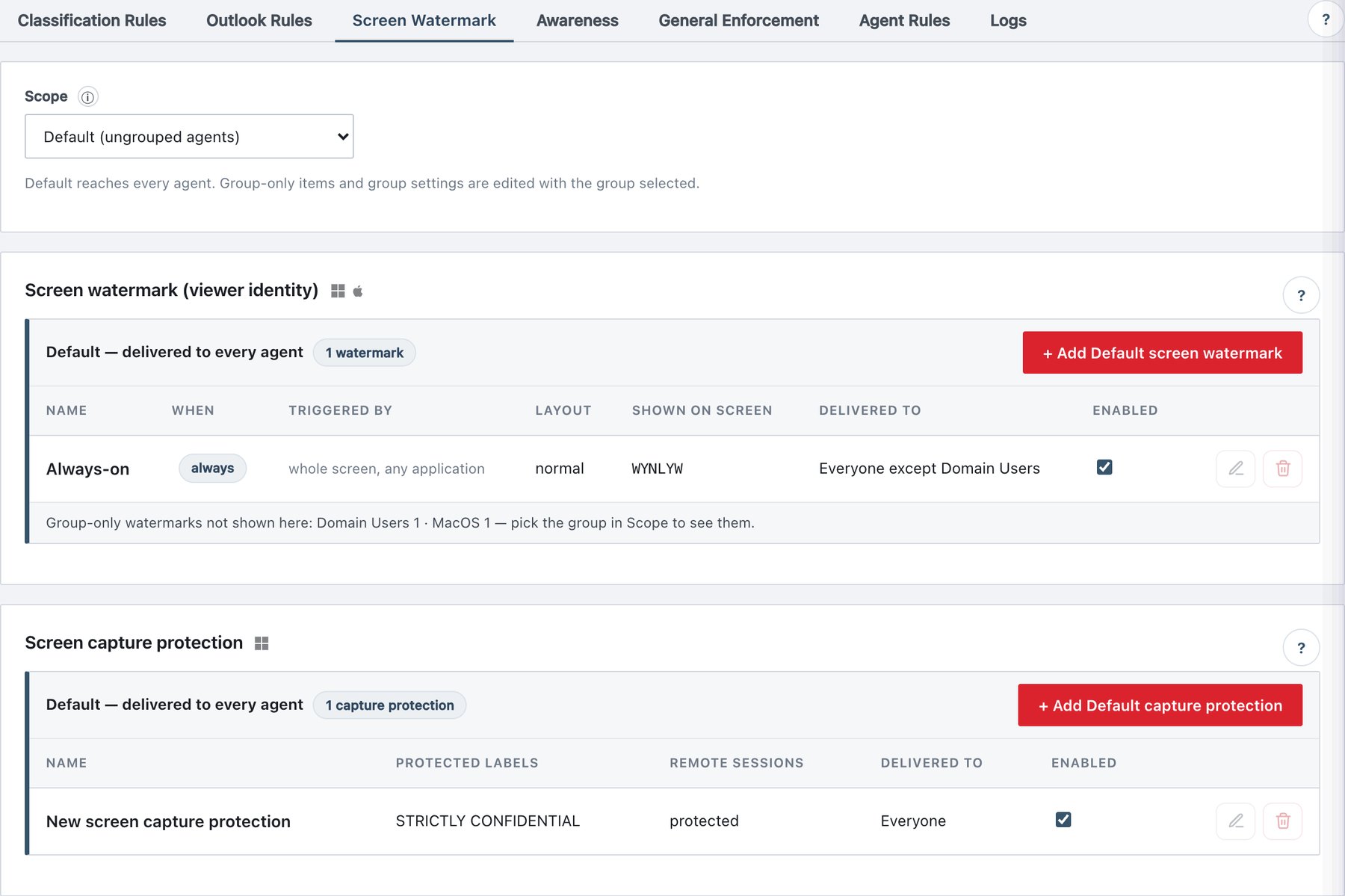
10.3.1 The Scope selector on this sub-tab
The Scope selector at the top of Policy → Rules works on these lists the same way as on Classification Rules (see section 10.1):
| Scope | What the lists show | Where “+ Add …” writes |
|---|---|---|
| Default (ungrouped agents) | One band, Default — delivered to every agent, with
a count badge. A footer line lists group-only items that are hidden
here,
e.g. Group-only watermarks not shown here: Finance 1 — pick the group in Scope to see them. |
A new rule with no groups = Common (every agent, grouped or not). |
| A group, e.g. Finance | Up to three bands: Only for Finance (editable),
Also delivered from Default (locked rows, lock icon),
Excluded from Finance (only when something is
excluded). A formula line above reads
e.g. Finance receives 3 watermarks = 1 only for Finance + 2 Default − 0 excluded. |
A new rule pre-targeted to that group. |
Row actions in a group scope:
- Own rows: Edit (pencil) and Delete (bin).
- Inherited rows: Exclude from Finance (asks for confirmation: “Finance stops receiving …”) and Edit in Default → (switches Scope to Default).
- Excluded rows: Include again (asks for confirmation).
The Enabled checkbox of an inherited row is disabled — edit the rule in Default.
10.3.2 Screen watermark rules — list
The card title is Screen watermark (viewer identity) with Windows and macOS icons. The ? help box (“What does a screen watermark do?”) summarises the feature.
| Column | Content |
|---|---|
| Name | Rule name. A red disabled badge when the rule is switched off. A red no identity badge when the rule is enabled but Username, Computer name and Trace code are all off — the agent will not draw it. |
| When | Badge labeled document (label-triggered) or always (whole screen). |
| Triggered by | The label names that trigger the rule. For Always rules: whole screen, any application. In red: no label selected for a label-triggered rule with no labels (it can never fire, and publishing will fail). |
| Layout | normal, dense or full. |
| Shown on screen | A sample line built from the rule’s fields,
e.g. CORP\jdoe · PC-0042 · 30.07.2026 14:05 · WYNLYW. |
| Delivered to | Everyone, Only Finance,
Finance · Legal, or Everyone except HR. |
| Enabled | Checkbox; unticked rules are not drawn. Changes apply to the draft immediately. |
| (actions) | Edit, Delete — or the scope actions described above. |
Buttons: + Add Default screen watermark (Default scope) or + Add screen watermark to Group (group scope).
Procedure — add a label-triggered watermark
- Go to Policy → Rules → Screen Watermark. Set Scope to Default (for everyone) or to the group that should receive it.
- Click + Add Default screen watermark (or + Add screen watermark to Group). The drawer New screen watermark opens.
- Enter a Name (for example
Confidential – viewer identity). - Under When it is drawn keep Only for labeled documents.
- Under Triggered by these labels tick one or more labels (for example Confidential and Strictly Confidential).
- Under What is printed on screen keep at least one of Username, Computer name or Trace code (unique ID) ticked.
- Choose a layout, opacity, font, size and colour; check the Preview.
- Optionally restrict delivery under Group targeting.
- Click Save in the drawer footer, then Publish & Sign.
Procedure — add an Always (session) watermark for a department
- Set Scope to the department’s group (for example Finance) so the new rule is pre-targeted there.
- Click + Add screen watermark to Finance.
- Under When it is drawn select Always — the whole screen. The label list disappears.
- Set fields and appearance, check that Group targeting shows Finance ticked, click Save, then Publish & Sign.
Procedure — stop or remove a watermark
- To pause it: untick Enabled in the row (or in the drawer) and publish.
- To remove it: click the bin icon. The confirmation reads “Are you sure you want to delete the screen watermark”…“? To stop it temporarily, turn off the Enabled switch instead of deleting.” Publish afterwards.
- To keep a Common rule away from one group: select that group in Scope, click Exclude from Group in the inherited row, publish.
10.3.3 Screen watermark drawer
Title: the rule name (or New screen watermark); subtitle Draw the viewer’s identity over labeled documents. The footer Save button is disabled until the rule is valid; the hint then reads Pick at least one label and keep one identifying field on.
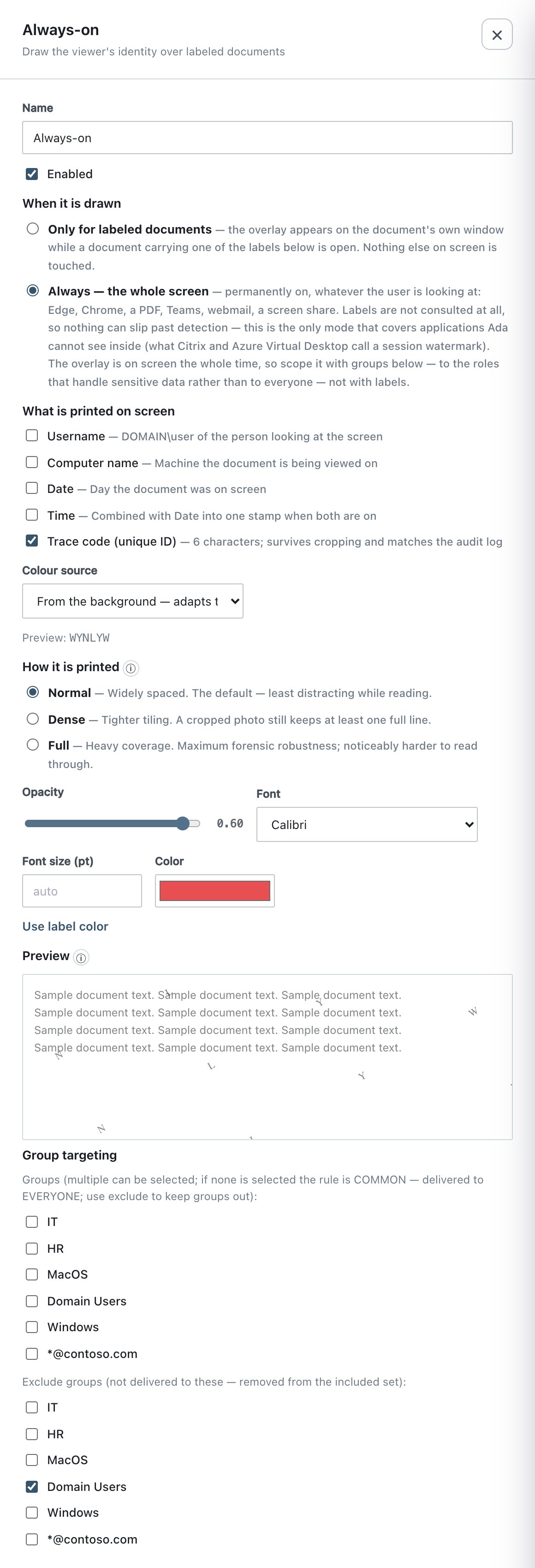
| Field (UI text) | What it does | Default / allowed values |
|---|---|---|
| Name | Rule name shown in the list and in the watermark_shown
audit record (ruleName). |
New screen watermark. Must not be empty — the drawer
does not block an empty name, but publishing fails with
screenWatermarkRules[n].name is required. |
| Enabled | Off = the rule is ignored by agents. | On. |
| When it is drawn → Only for labeled documents | The overlay is drawn on the document’s own window while a document carrying one of the selected labels is visible. Nothing else on screen is touched. | Selected by default (trigger: label). |
| When it is drawn → Always — the whole screen | A session watermark covering every monitor permanently, whatever the user is looking at (browsers, PDF readers, Teams, webmail, screen shares). Labels are not consulted. | trigger: always. Target with groups, not labels. |
| Triggered by these labels | Checkbox per label (all labels of the policy are listed). Shown only for label-triggered rules. | At least one required: Select at least one label — otherwise the rule never fires. |
| Username | Prints DOMAIN\user of the signed-in viewer. |
On. |
| Computer name | Prints the machine name. | On. |
| Date | Prints the day (dd.MM.yyyy, local time). |
On. |
| Time | Prints HH:mm (local time). With Date on, both are
combined into one stamp dd.MM.yyyy HH:mm. |
On. |
| Trace code (unique ID) | 6 characters derived from user + machine + day; survives cropping and matches the audit log. | On. |
| Colour source | Fixed colour (or the label’s own) — uses Color, or the triggering label’s colour when Color is cleared. From the background — adapts to the screen — dark ink on light backgrounds, light ink on dark ones. | Fixed. In background mode the Color picker is disabled. |
| Preview line | Preview: <sample> — the exact text order the
agent will print. |
— |
| Layout: Normal | Widely spaced. The default — least distracting while reading. Tile gap ≈ 430 × 270 px, 11 pt. | Default. |
| Layout: Dense | Tighter tiling. A cropped photo still keeps at least one full line. Gap ≈ 200 × 160 px, 12 pt, opacity × 0.95. | — |
| Layout: Full | Heavy coverage. Maximum forensic robustness; noticeably harder to read through. Gap ≈ 90 × 95 px, 12 pt, opacity × 0.80. | — |
| Opacity | Real per-pixel transparency; the colour is blended with what is behind it. Slider with the value shown to two decimals. | 0.30; range 0.05–0.60, step 0.01. Values outside the range are rejected at publish; an agent treats an unset value as 0.30. |
| Font | Font family. | Segoe UI (default), Arial, Calibri, Consolas (monospace), Tahoma, Times New Roman, Verdana. On macOS a family that is not installed falls back to the system font. |
| Font size (pt) | Overrides the layout’s own size. Empty (placeholder
auto) = layout size. |
Empty; integer 6–48. |
| Color | Ink colour (#RRGGBB). |
Picker shows #787878 when unset. Use label
color clears it so the triggering label’s colour is used. For
Always rules (no label) an unset colour falls back to neutral grey. |
| Group targeting → Groups | Multi-select. None ticked = Common (delivered to everyone). Ticked = only those groups. | In a group scope the new rule is pre-ticked for that group. If no groups exist: No groups defined — this watermark applies to every agent. |
| Group targeting → Exclude groups | Groups that never receive the rule; exclusion wins over inclusion. | None. |
The text is always tiled diagonally at −30°, every other row offset by half a step. The angle is not configurable.
10.3.4 How agents apply screen watermarks
Delivery. Rules travel inside the signed policy. The server filters them per agent group before signing:
- Rules not visible to the agent’s group (other groups’ rules, or Common rules excluding the group) are removed.
- For label-triggered rules, label IDs that the group does not receive are dropped; a rule left with no labels is removed. Always rules are never filtered by label.
- Group-specific rules are moved ahead of Common
rules (
groupSpecificFirst); console order is otherwise kept.
Agents pick the policy up on their next sync (Sync interval, default 300 s, see section 10.6.8).
Which rule wins.
| Situation | Winner |
|---|---|
| Any enabled Always rule that carries identity reaches the machine | The first such Always rule in the delivered list draws the full-screen layer. Because group-specific rules are sorted first, a group’s own Always rule beats a Common Always rule. Label-triggered rules are not evaluated while an Always rule is active (the identity is already on screen). |
| Several label-triggered rules match the open document’s label | The first enabled, identity-carrying rule in the delivered list (group-specific first, then console order). |
Windows (agent service + AdaOverlay).
| Aspect | Behaviour |
|---|---|
| Who draws | AdaOverlay, started by the agent service in each
signed-in user session. The identity shown is the session’s user, not
the service account. |
| Label-triggered detection | The Word, Excel, PowerPoint and Outlook COM add-ins report each open document’s label. The overlay is locked to that document window: it stays when another application is clicked or the taskbar is used, it disappears when the window is minimised, closed or on another virtual desktop, and it never paints over windows in front of the document (the covered parts are cut out). |
| Always mode | One layer per monitor, covering everything. |
| Refresh | Window geometry is re-checked every 250 ms; policy and label state are re-read at most once per second. Open Office documents re-read the policy every 10 seconds, so a newly published rule applies to an already open document without reopening it. |
| Colour from background | The pixels under the layer are sampled and a darker/lighter shade of the same tone is used. |
| Audit | watermark_shown (with traceCode,
labelId, ruleId, ruleName,
fileName, app) once when a labeled document is
first shown; for Always mode once per rule per day (the trace code
changes daily, app: screen, mode: always). If
the overlay process disappears from a session where it was running for
more than 60 seconds, the service writes overlay_stopped
(with gapSeconds, recovered,
alwaysWatermark). |
macOS (menu bar helper).
| Aspect | Behaviour |
|---|---|
| Who draws | The Ada menu bar helper in the user’s session. Same layouts, spacing, angle, text format and trace-code algorithm as Windows, so screenshots from both platforms look identical. |
| Always mode | Covers every screen. Needs no special permission. |
| Label-triggered mode | Each visible document window whose application reports its file through the macOS Accessibility API is checked for its label; the layer follows that window exactly, with the same “stay while visible, never paint over windows in front” rules as Windows. Requires the Accessibility permission for the Ada menu bar helper (System Settings → Privacy & Security → Accessibility). Without it label-triggered watermarks stay dark and the helper logs why. |
| Screen Recording permission | Not required in either mode — window names and screen pixels are never read. |
| Colour from background | Approximated: the ink follows the system appearance (dark ink in Light mode, light ink in Dark mode), because sampling pixels would need Screen Recording. |
| Refresh | Policy is reloaded on the helper’s 5-second tick; windows are tracked every 250 ms. |
| Audit | watermark_shown, keyed per day, via the agent.
tamper_detected is written if the watchdog has to restore a
removed launchd service. |
Tracing a photographed screen
- Read the 6-character trace code from the photo (the alphabet avoids look-alike characters such as 0/O and 1/I).
- Open Activity → Audit and search the
Trace field for the code; the matching
Screen watermark shownrecord names the user, machine, document (orscreenfor Always mode) and day.
10.3.5 Screen capture protection — list
The second card, Screen capture protection (Windows icon only), lists capture-protection rules with the same band layout and row actions as the watermark list. Help box: “What does screen capture protection do?”
| Column | Content |
|---|---|
| Name | Rule name; disabled badge when off. |
| Protected labels | Label names; red no label selected if empty. |
| Remote sessions | protected (Apply) or skipped (Skip). |
| Delivered to | As for watermark rules. |
| Enabled | Checkbox (Disabled rules protect nothing). |
Buttons: + Add Default capture protection / + Add capture protection to Group.
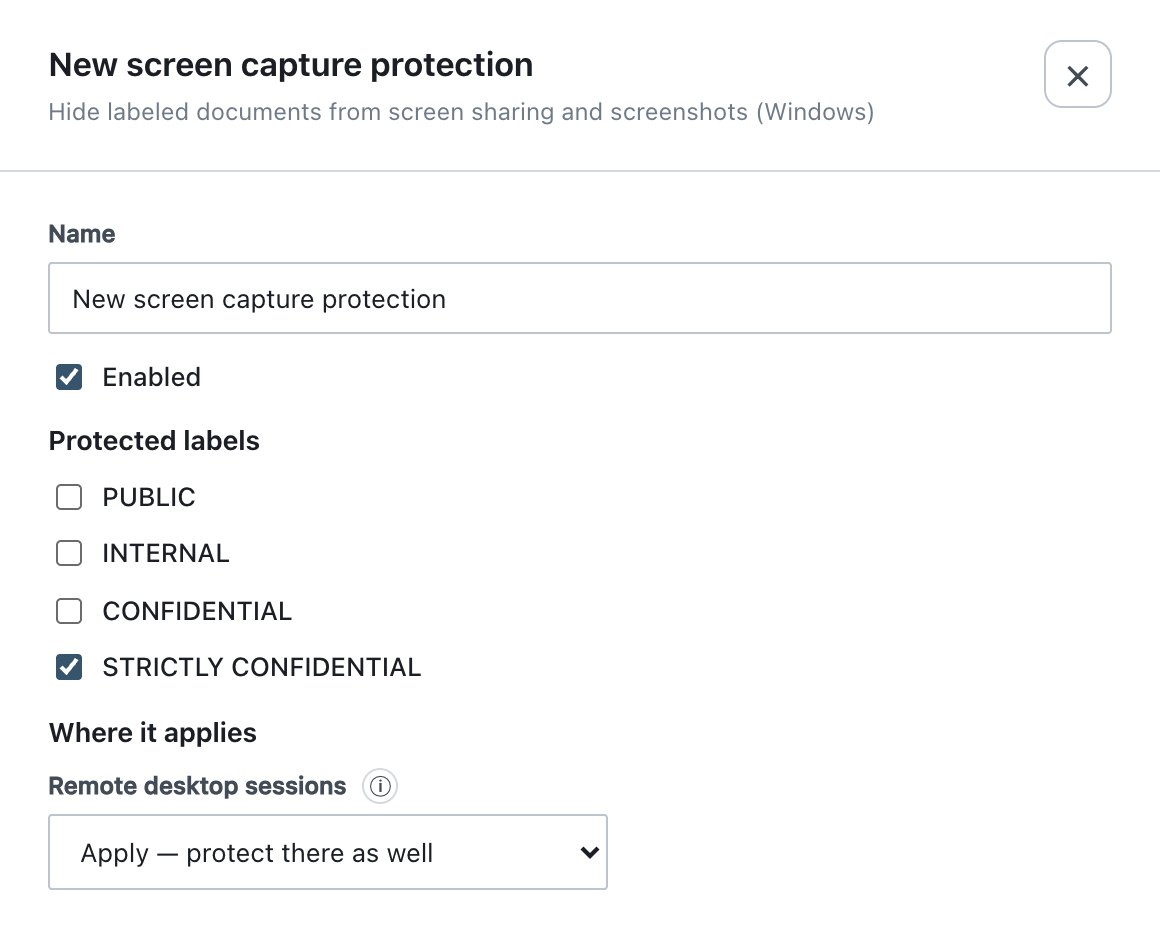
Procedure — protect Strictly Confidential documents from screen sharing
- Policy → Rules → Screen Watermark, scroll to Screen capture protection.
- Click + Add Default capture protection (or select a group first).
- Enter a Name, tick the label(s) under Protected labels.
- Leave Remote desktop sessions on Skip unless you have tested Apply in your VDI.
- Click Save, then Publish & Sign.
10.3.6 Screen capture protection drawer
Subtitle: Hide labeled documents from screen sharing and screenshots (Windows). Save is disabled until a label is ticked (Pick at least one label.).
| Field (UI text) | What it does | Default / allowed values |
|---|---|---|
| Name | Rule name; appears in the screen_capture_protected
audit record. |
New screen capture protection. Required at
publish. |
| Enabled | Off = rule ignored. | On. |
| Protected labels | Documents carrying any ticked label are protected. | At least one label (enforced in the drawer and at publish). |
| Remote desktop sessions | Skip — no protection inside remote sessions: in a Remote Desktop / VDI session the window stays capturable (the add-in logs this once per document). Apply — protect there as well: shares, screenshots and recordings made inside the remote session show a black box. | Skip. Whether the remote user still sees the document depends on the RDP/VDI client — try Apply on one machine first. |
Group targeting is not shown in this drawer; use the Scope selector (new rules are pre-targeted to the selected group) and the Exclude / Include again row actions.
10.3.7 How screen capture protection works
| Aspect | Behaviour |
|---|---|
| Mechanism | Windows’ window display-affinity flag (WDA_MONITOR):
the window is displayed only on the physical monitor; in Teams, Zoom,
Webex and Google Meet shares, Print Screen and screen recordings it
appears as a black rectangle. |
| Applications | The Word, Excel and PowerPoint COM add-ins protect their own document windows. Outlook protects messages opened in their own window — not the reading pane, so the rest of Outlook stays visible. |
| Not covered | PDF files (Acrobat, Edge, Chrome are other applications; Windows lets an application protect only its own windows — the agent writes one log line per PDF instead). Office on the web and macOS (Apple does not let one application protect another’s window; on the Mac the screen watermark remains the deterrent). Sharing a single browser tab. A phone camera. |
| Timing | Applied when the add-in evaluates the document (document events and label changes); open documents re-check the policy every 10 seconds. Removing the label or closing the document clears the flag. |
| Rule precedence | The first enabled rule (console order) whose labels include the document’s label decides — this matters only for the Remote desktop sessions choice. |
| Audit | screen_capture_protected (rule ID/name,
app) once per document and label while it stays
protected. |
| Platforms | Windows desktop Office only. |