
8.6 Document markings
The Markings Section controls what Ada writes into Word, Excel and PowerPoint documents.
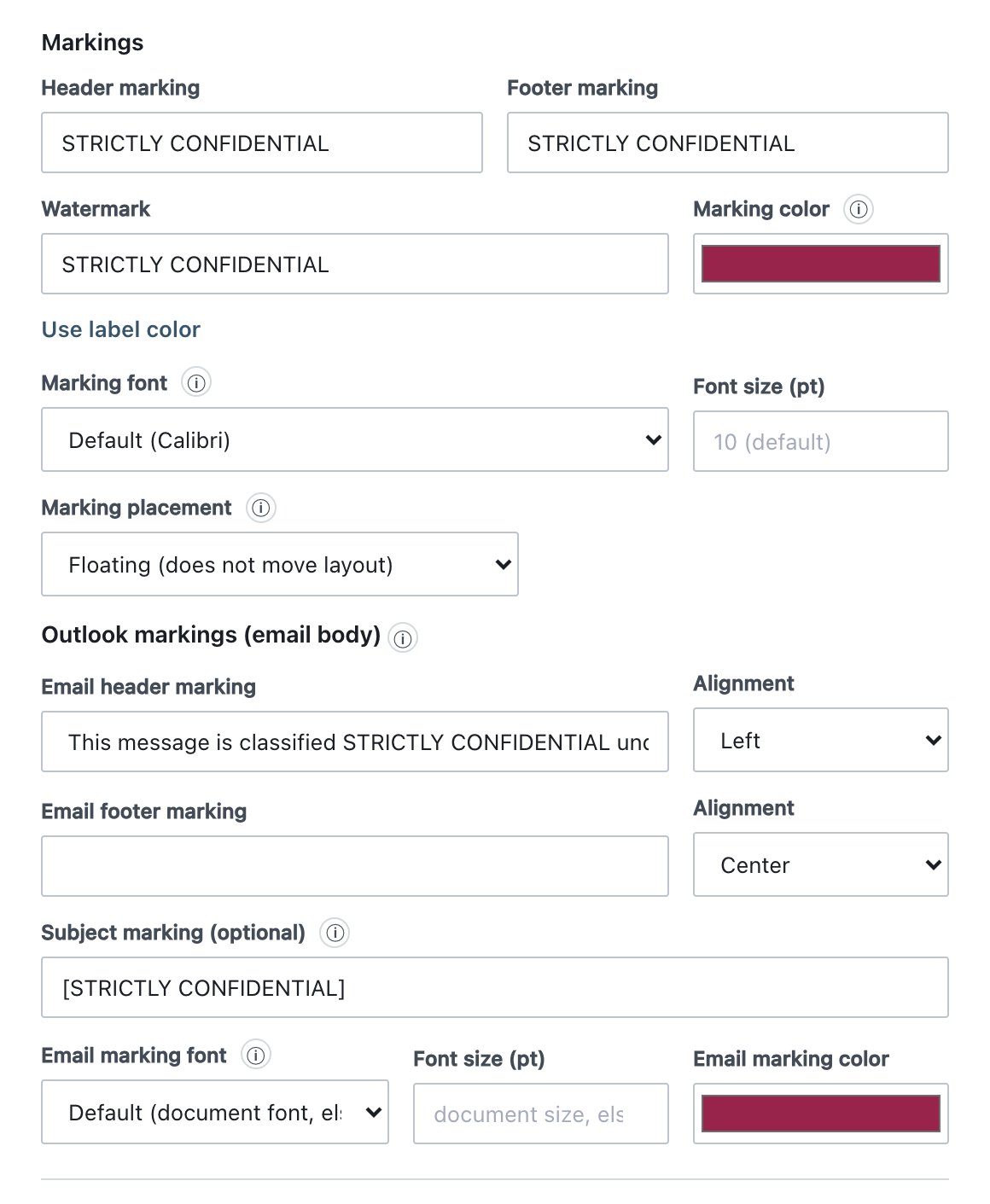
| Field | What it does | Default / allowed values |
|---|---|---|
| Header marking | Text written at the top of every page (Word), into the centre print header of every sheet (Excel), or into the slide footer (PowerPoint). | Empty means no header marking. |
| Footer marking | Text written at the bottom of every page (Word) or into the centre print footer (Excel). In PowerPoint it is combined with the header text in the slide footer. | Empty means no footer marking. |
| Watermark | Large, light, diagonal text behind the page or slide. | Empty means no watermark. |
| Marking color | Colour of the header and footer text and of the watermark. | Empty. The colour comes from the first value that is set:
Marking color, the label Color, then
dark red #C00000. Shows Use label color
when set; click it to go back to the label colour. |
| Marking font | Font of the header and footer markings, in documents and (unless overridden) in email. | Default (Calibri). Options: Segoe UI, Arial, Calibri, Times New Roman, Verdana, Tahoma, Georgia, Courier New. The watermark font is fixed. |
| Font size (pt) | Size of the header and footer markings. | Empty means 10. Whole number from 6 to 96. |
| Marking placement | How the marking sits in a Word header or footer. Excel and PowerPoint ignore it. | Separate line (default), Same line as existing content, Floating (does not move layout). |
Marking placement options (Word only):
- Separate line: the marking is a paragraph of its own, the first line of the header or the last line of the footer. On templates whose header holds a logo or a table, this makes the header taller and pushes the content down.
- Same line as existing content: the marking is inserted at the start of the header’s first line, or at the end of the footer’s last line. No line is added.
- Floating: the marking is a floating text box. The header height and page layout do not change. Choose this for letterhead templates.
How each application writes markings
| Where | Header / footer | Watermark | Notes |
|---|---|---|---|
| Word (Windows add-in, file agent, right-click tool, macOS agent) | First header line and last footer line of every section, in the label’s font, size and colour. Placement as configured. | Diagonal text behind the page. | The user’s own header and footer content is kept. Ada’s marking is identified by its own style or shape and replaced, not duplicated, when the label changes. |
| Excel | Centre print header and centre print footer of every worksheet. | A picture in the left print header. | The user’s left and right sections and their own centre lines are kept. A print-header section holds at most about 250 characters including formatting codes. A longer marking is shortened with “…”. |
| PowerPoint | Header and footer text are combined into the footer of every slide (PowerPoint slides have no header), centred, bold and in the label colour. | A full-slide picture on the slide layouts. | The user’s own footer text is kept. |
| Office on the web (Word, Excel, PowerPoint panels) | Written through Office.js where the host supports it. Excel uses the print header and footer. | As above, where the host supports it. | Applied when the user labels the document in the panel. |
Legacy .doc, .xls, .ppt |
The file agent and right-click tool write the label into the file’s properties but write no visual markings into the binary file. | None. | Markings appear when the document is labeled or saved in desktop Office with the add-in. |
Markings are refreshed only when they change. Saving a document whose markings are already correct does not rewrite them.