
7.3 Active Directory access
The Active Directory access card on Administration → Users decides which AD groups and individual AD users may sign in, and with which role. It appears once a directory is enabled (section 6.5).
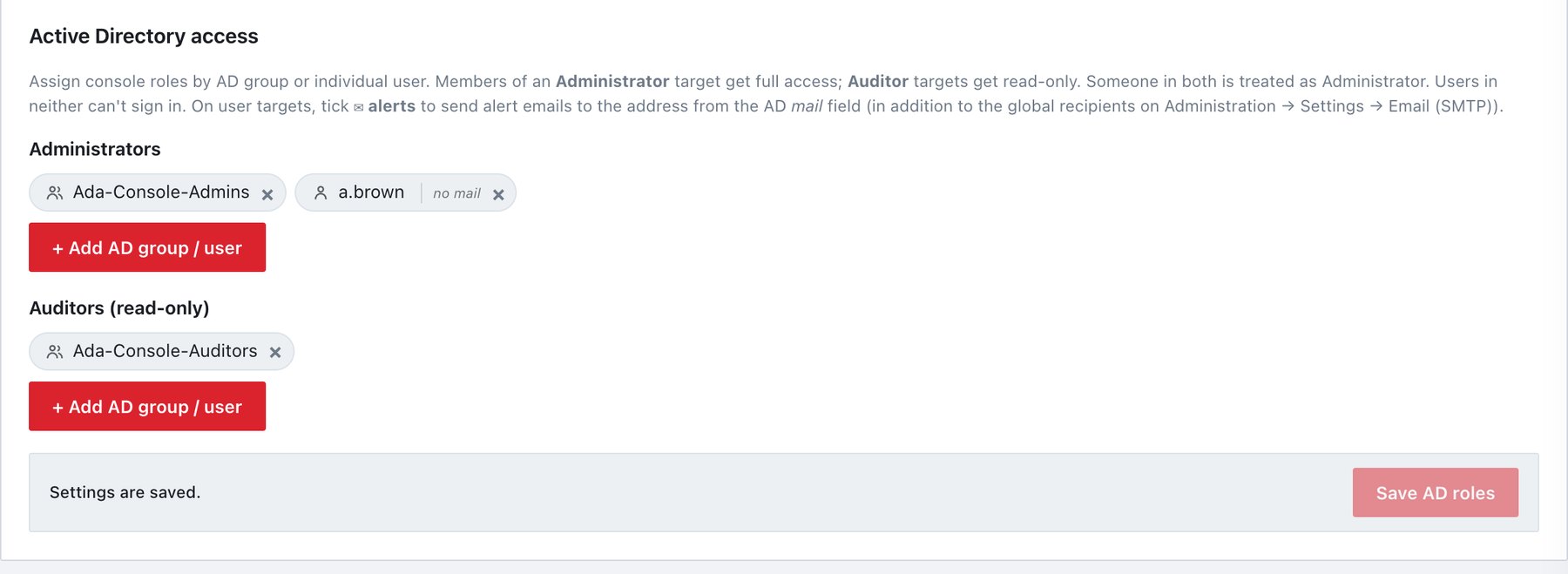
What the card shows
Two lists, Administrators and Auditors (read-only). Each entry is a chip with a type icon (group or user) and its name; hovering shows the SID (and the e-mail address of a user). User chips carry a ✉ alerts check box, or no mail when the AD account has no mail attribute. × removes an entry after confirmation. The bar at the bottom reads You have unsaved settings changes. or Settings are saved. with Save AD roles.
Assign roles
- Under Administrators, click + Add AD group / user.
- Type part of a name in Search AD groups and users… (e.g. Domain Users). Results (up to 25 per domain) show the name, the account name and, with several domains, the domain. Click a result to add it; added entries are marked ✓ added.
- Click Done.
- Repeat under Auditors (read-only).
- On user chips, tick ✉ alerts where that person should receive alert e-mails.
- Click Save AD roles. The message reads Saved. AD role assignments updated.
If the search fails, the reason is shown (for example Directory search failed: Domain controller unreachable…); “No matches.” appears only when the directory answered with nothing.
How assignments are evaluated
- Entries are stored by SID, so renaming a group in AD does not break the assignment.
- A user matches an entry through the user’s own SID, the primary group, or any group the user belongs to directly or through nested groups.
- Administrator outranks Auditor. A user matching neither list is refused at sign-in.
- Assignments are read at every AD sign-in. An AD user who is already signed in keeps the role of that session until it ends (maximum session lifetime, section 6.8) or the user signs out; removing someone here does not end an open session.
Alert e-mails for AD users
The ✉ alerts tick adds the mail address captured when the user was added to the alert recipients, on top of the default list in Settings → Email (SMTP). To pick up a changed AD address, remove the user and add them again. Groups have no ✉ tick; only individual users can receive alerts.
When AD is turned off
With the directory disabled and assignments still present, the card shows an inactive badge and the warning that nobody can sign in with these assignments. Only removal is possible (no search, no ✉ box) and the button reads Save removals. The directory configuration can be deleted only after all assignments have been removed and saved (section 6.5).
Changes write directory_config_changed with the number
of administrator and auditor targets before and after.