
9.5 Creating and editing a group
- Click + Add Group. The Edit group drawer opens with the name New Group.
- Enter a Group name.
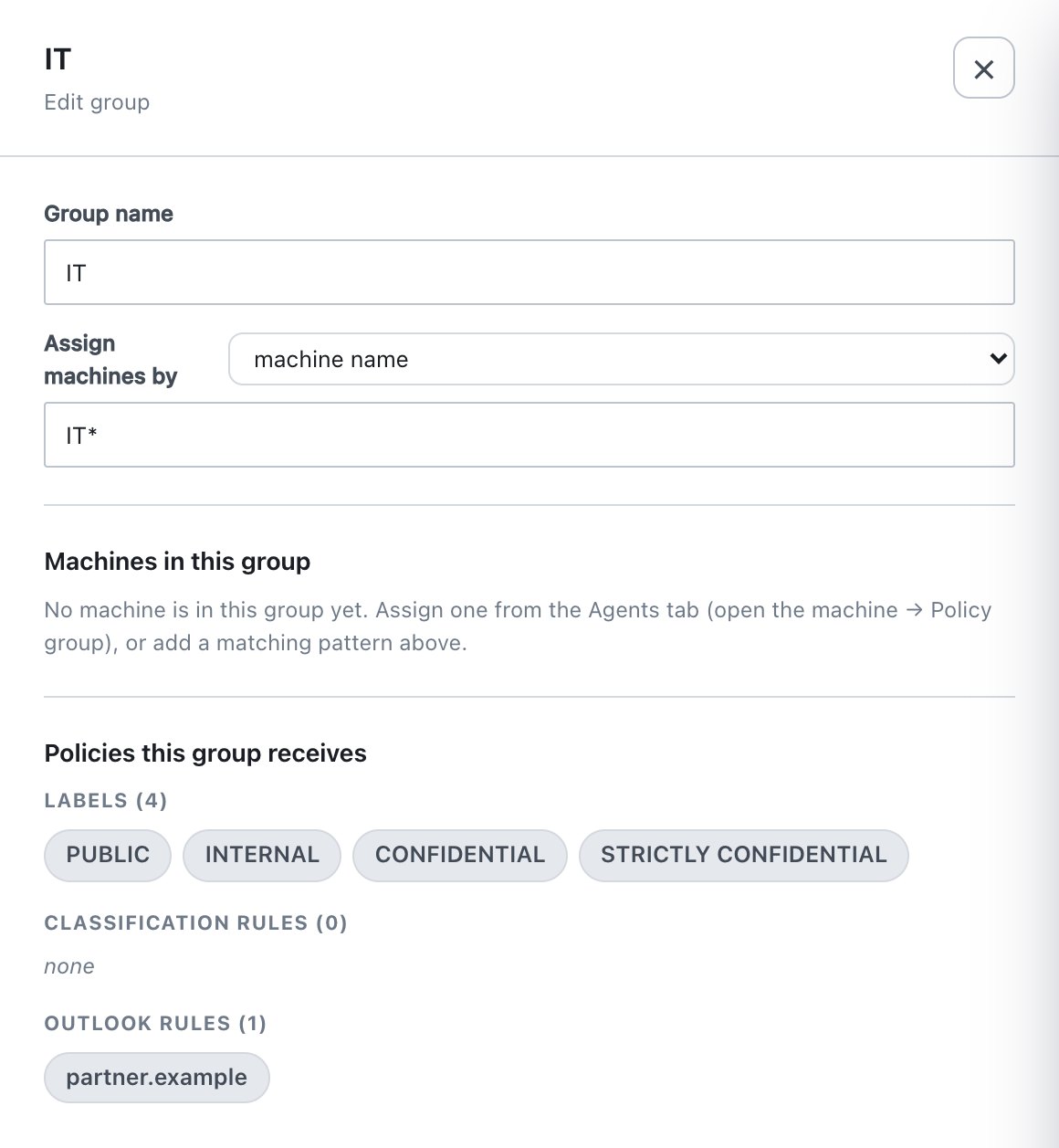
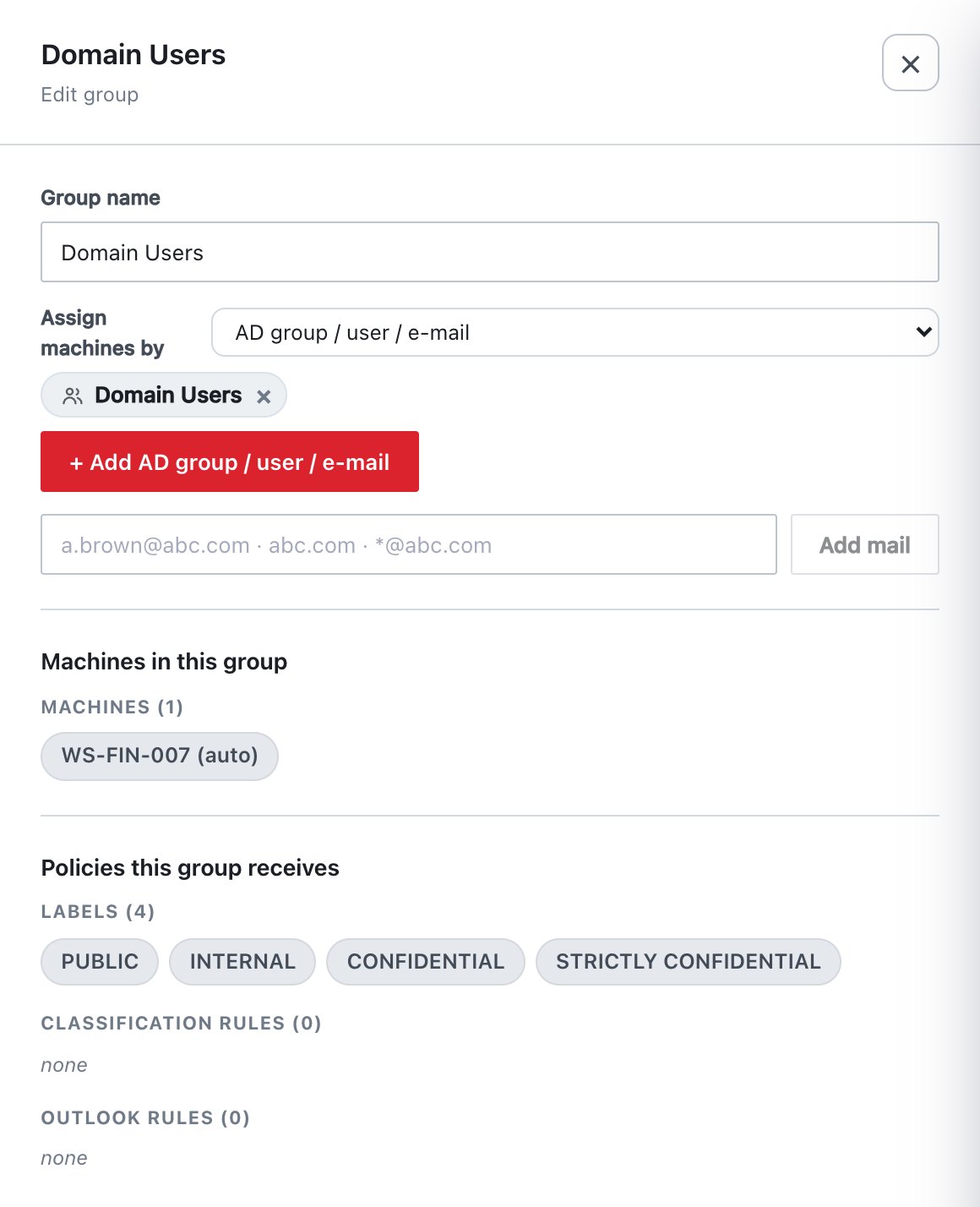
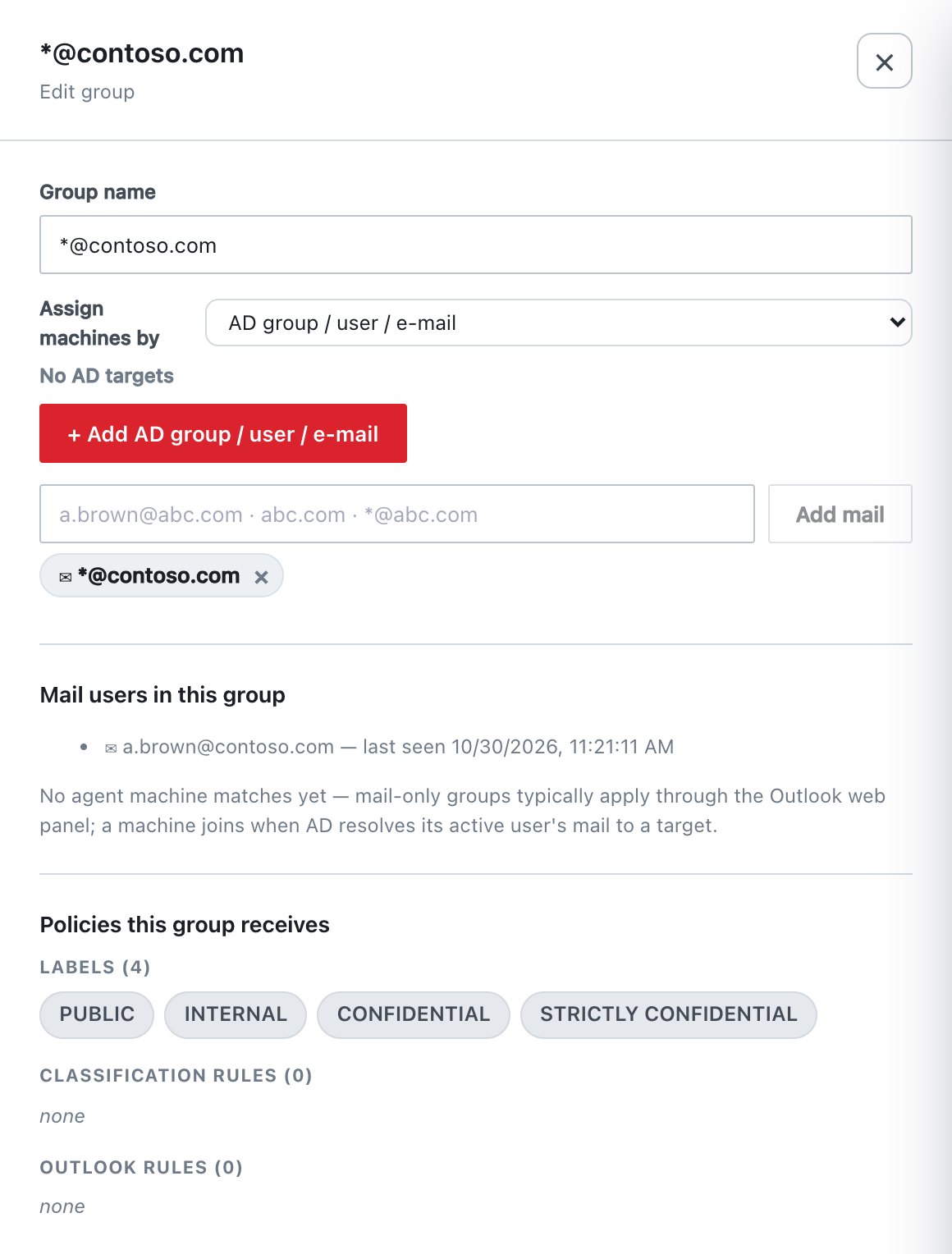
- Choose Assign machines by and enter the targets (section 9.3).
- Click Save. The footer then reads Applied to the draft — Publish & Sign to deploy to clients.
- Move the group to the right priority with ▲▼ (section 9.7).
- Assign labels and rules to it on their own pages. Set its enforcement and agent settings in Policy → Rules with Scope = the group.
- Click Publish & Sign.
| Field | What it does | Default / allowed values |
|---|---|---|
| Group name | Shown in lists, scope selectors and the agent’s About window. | New Group. Required and unique (case-insensitive). Group name is required. / This name is also used by another group. |
| Assign machines by | The targeting method. | machine name (default), operating system, AD group / user / e-mail (only when AD is enabled). Switching the method clears the other methods’ entries. |
| Machine-name patterns | Shown for machine name. | Comma-separated, * wildcard. Placeholder
FIN-*, ACCOUNTING01. Empty shows Add a machine pattern,
or assign machines from the Agents tab. |
| OS patterns | Shown for operating system. | Comma-separated, * wildcard. Placeholder
*Windows 11*, *Windows Server*. |
| AD targets | Shown for AD. + Add AD group / user / e-mail opens the picker (section 9.6). | Chips with a group, user or computer icon. × asks Remove “…” from the list? |
| Add mail | Mail targets (section 9.3). Press Enter or click Add mail. | Full address, domain or wildcard. Invalid input shows Enter an e-mail, a domain (abc.com) or a wildcard (@abc.com).* Duplicates are ignored. |
| Machines in this group | Read-only. The machines currently in the group, live from agent data, with “(auto)” for automatic matches. The heading becomes Mail users in this group or Machines & mail users in this group when mail entries exist. | – |
| Policies this group receives | Read-only. The labels, classification rules and Outlook rules assigned specifically to this group. Common items, which the group also receives, are not listed. | – |
Publish requirements for groups:
- Every group needs a name and at least one target (pattern, OS pattern or AD entry). The console otherwise stops Publish & Sign with The following groups are missing a name or a target …. This also applies to groups you only intend to fill by manual assignment.
- The server rejects an unknown method, OS mode with no OS patterns, entries for a method other than the selected one, a mail entry that is not an address, domain or wildcard, a computer entry with no name, and a group or user entry with no SID.